Appearance
Lightbox
You can set lightbox effects for images and links. When clicking an image or link, an image, video, or map will be displayed in a lightbox popup.
Please watch the video below for detailed usage instructions.
Image (Lightbox)
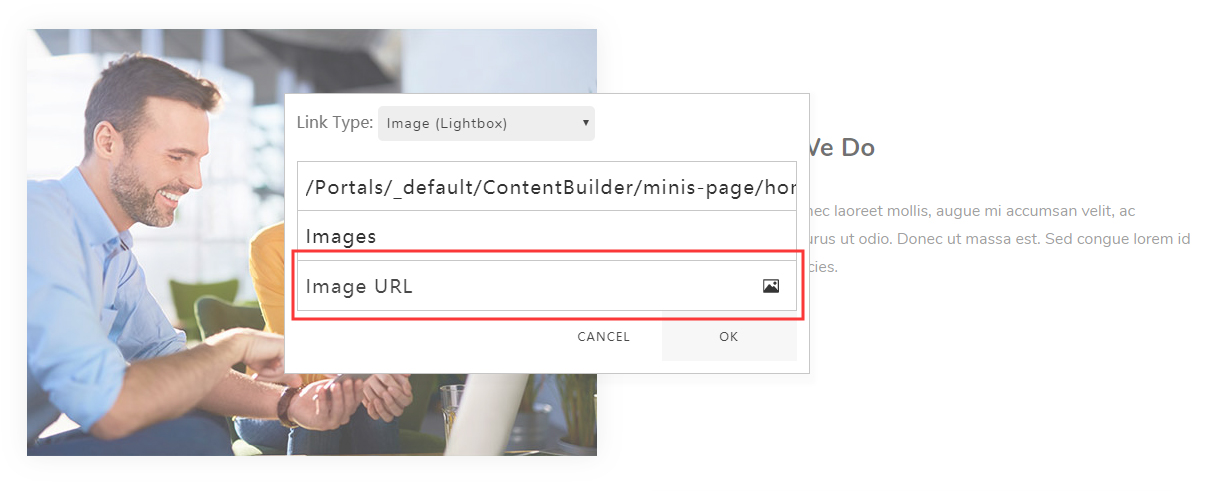
Set the Link Type to Image (Lightbox), then enter the image URL in Image URL or upload an image.
YouTube Video (Lightbox)
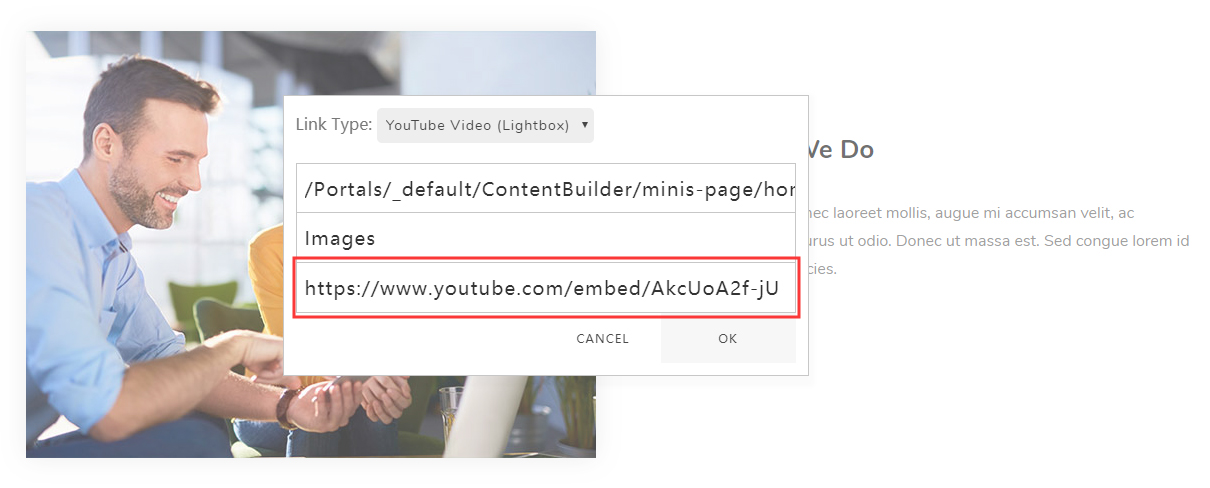
Set the Link Type to YouTube Video (Lightbox), then enter the video URL in YouTube URL. For example: https://www.youtube.com/embed/AkcUoA2f-jU, where AkcUoA2f-jU is the video ID. Replace it with your own video ID.
Vimeo Video (Lightbox)
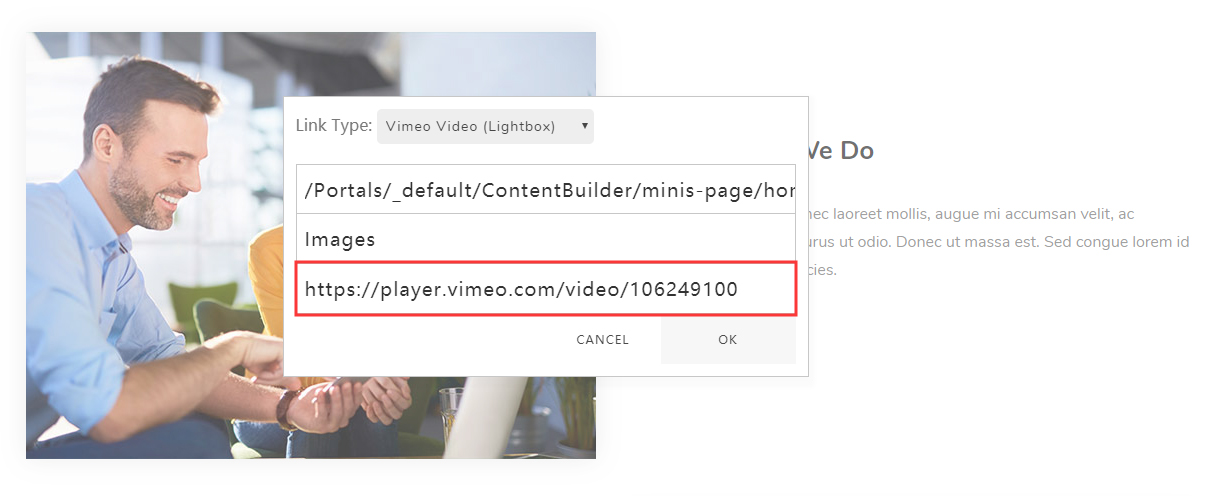
Set the Link Type to Vimeo Video (Lightbox), then enter the video URL in Vimeo URL. For example: https://player.vimeo.com/video/106249100, where 106249100 is the video ID. Replace it with your own video ID.
HTML5 Video (Lightbox)
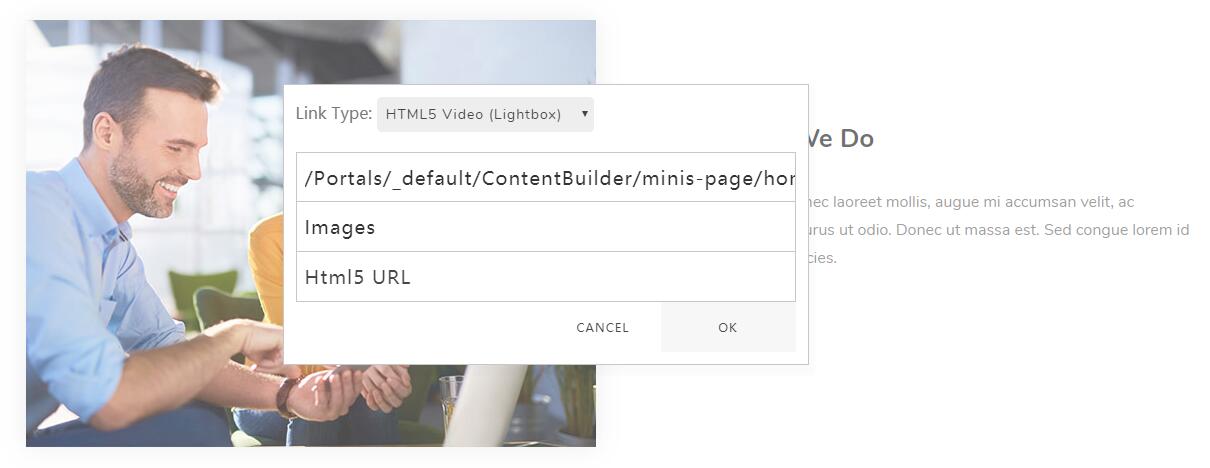
Set the Link Type to HTML5 Video (Lightbox), then enter the video URL in HTML5 URL. Please note that the video format must be MP4.
Google Map (Lightbox)
Set the Link Type to Google Map (Lightbox), then enter the map embed URL in Google Map URL. For example:
https://www.google.com/maps/embed?pb=!1m18!1m12!1m3!1d3023.4180044887703!2d-73.99952068428715!3d40.730826844399864!2m3!1f0!2f0!3f0!3m2!1i1024!2i768!4f13.1!3m3!1m2!1s0x89c25990e23d7e8d%3A0xfa615edfd1b67e18!2sWashington%20Square%20Park!5e0!3m2!1sen!2sus!4v1575362448308!5m2!1sen!2sus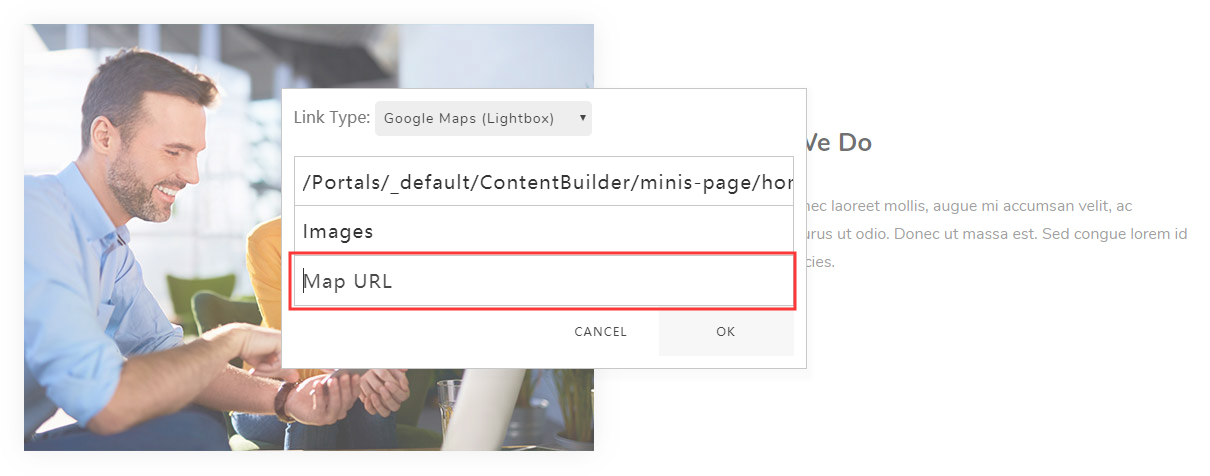
Lightbox Grouping
You can associate multiple images to the same lightbox group to enable image browsing and switching.
Content (Lightbox)
You can set a lightbox popup to display HTML content.