Appearance
Setting Up Mega Menu
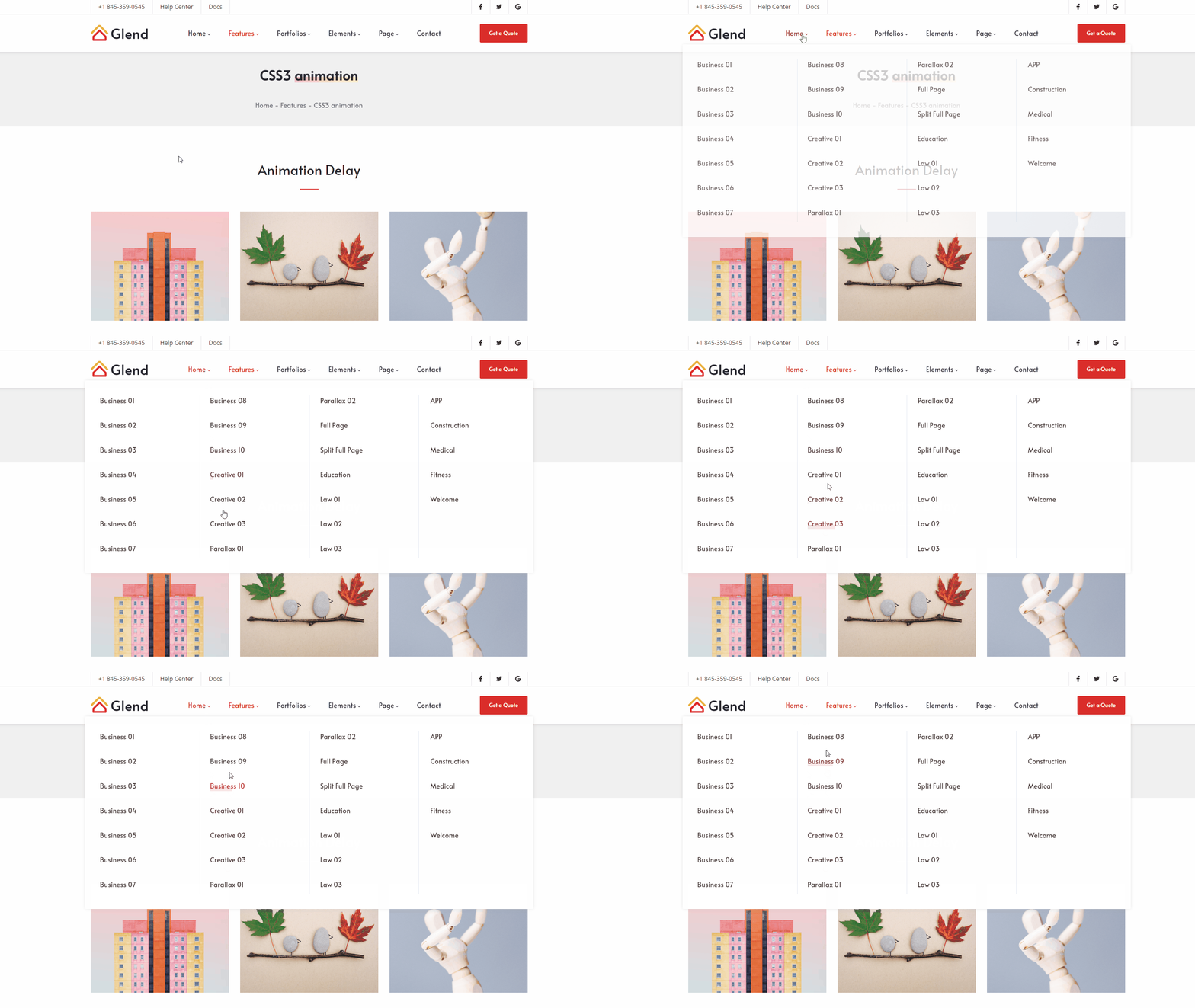
Mega Menu is an advanced navigation component that displays rich content in a multi-column dropdown panel, including images, links, custom HTML, and third-party modules.
Enabling Mega Menu
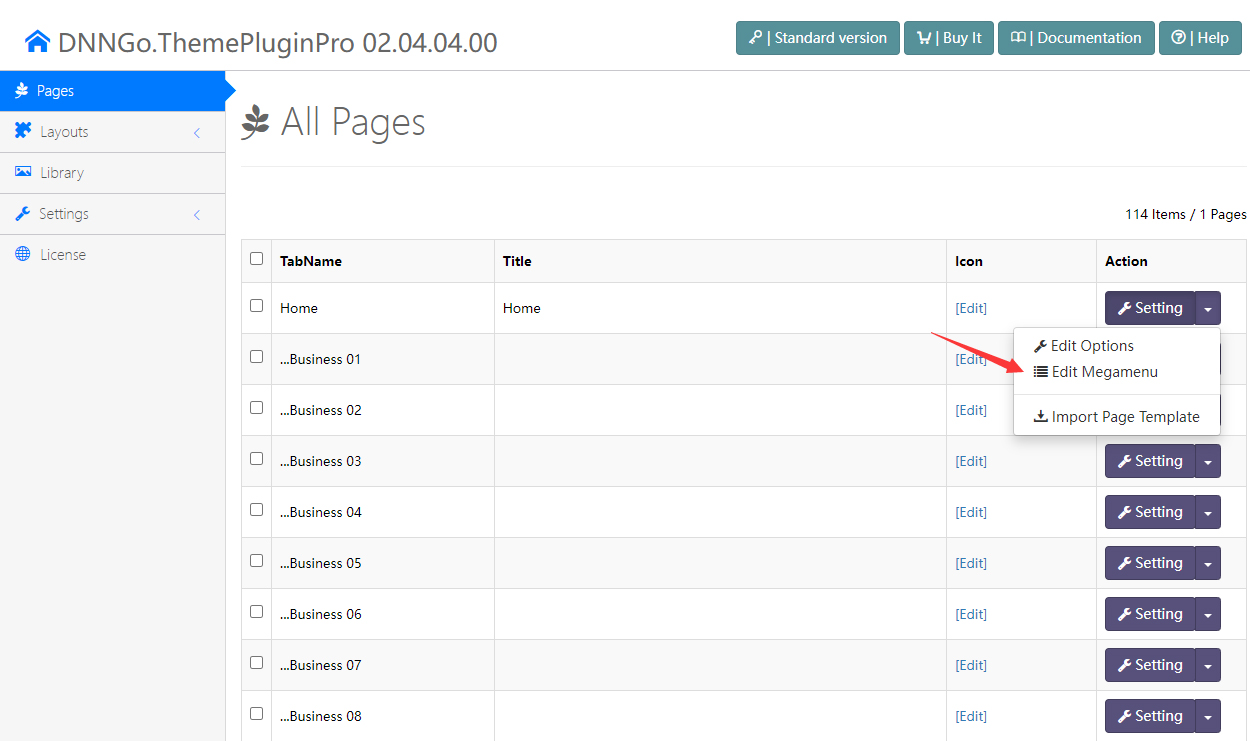
- Log in to the website with an administrator account.
- Go to the ThemePluginPro > Pages tab.
- Click the Edit Megamenu button on the target menu item.
Menu Types
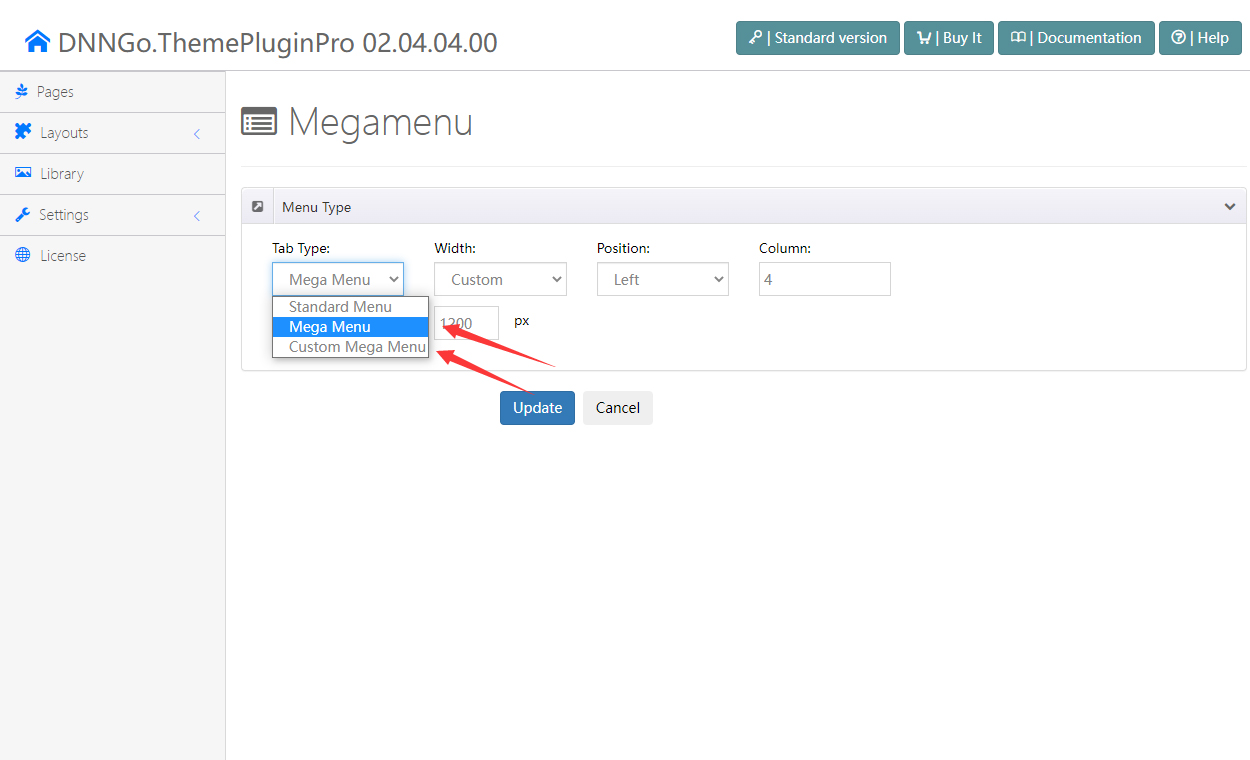
The theme provides two types of mega menus:
- Mega Menu — A standard multi-column dropdown menu, ideal for displaying category links, images, and other content.
- Custom Mega Menu — A custom mega menu that supports embedding HTML modules and third-party DNN modules.
Configuring Mega Menu
After selecting the Mega Menu type, you can configure the following parameters:
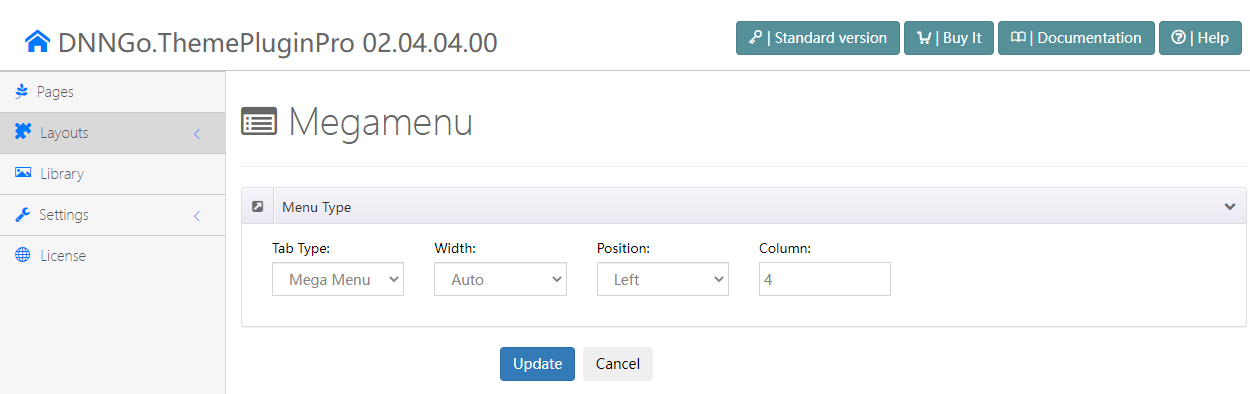
Width
Controls the display width of the dropdown menu.
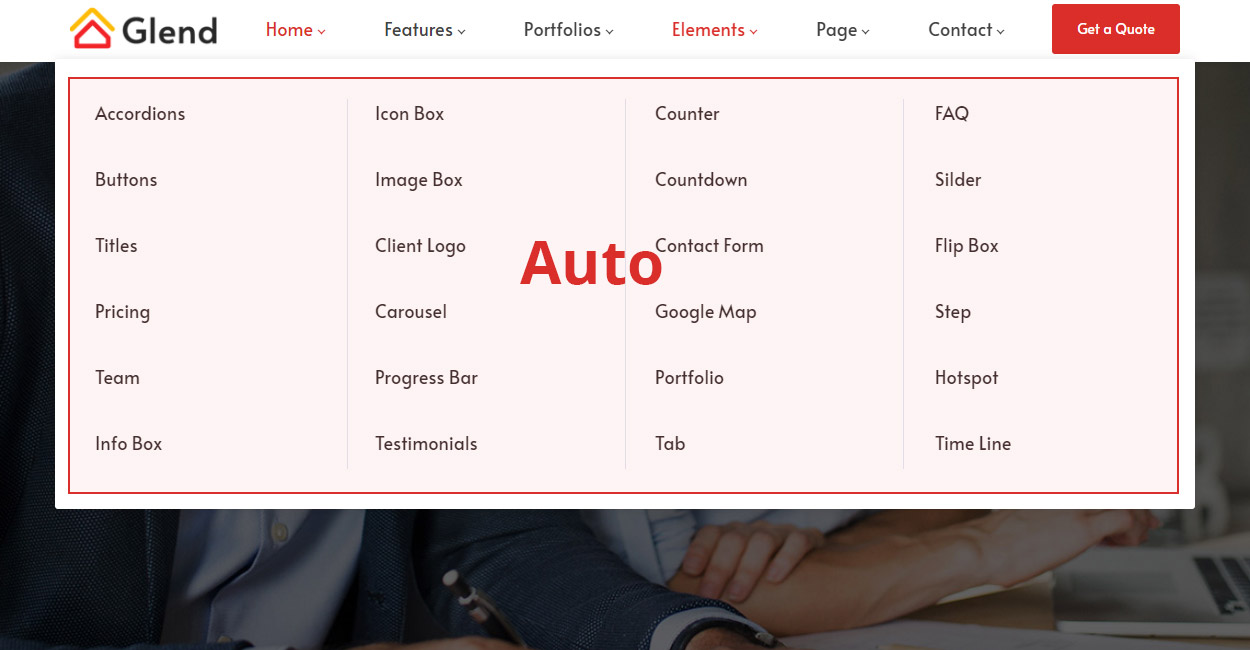
- Auto — Automatically inherits the width of the theme content area.
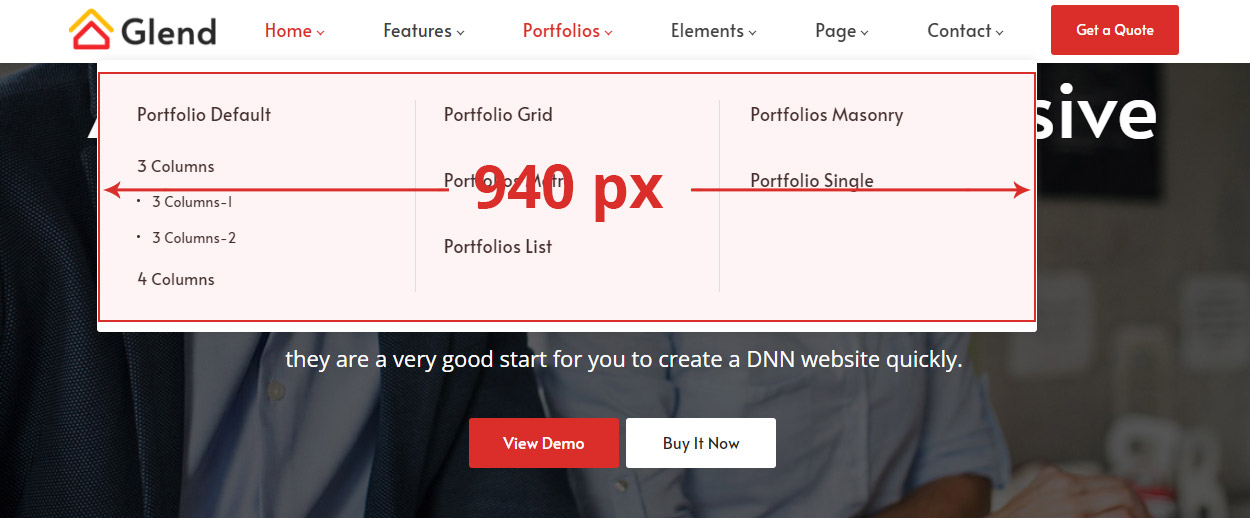
- Custom — Manually specify a width value (in px).
Position
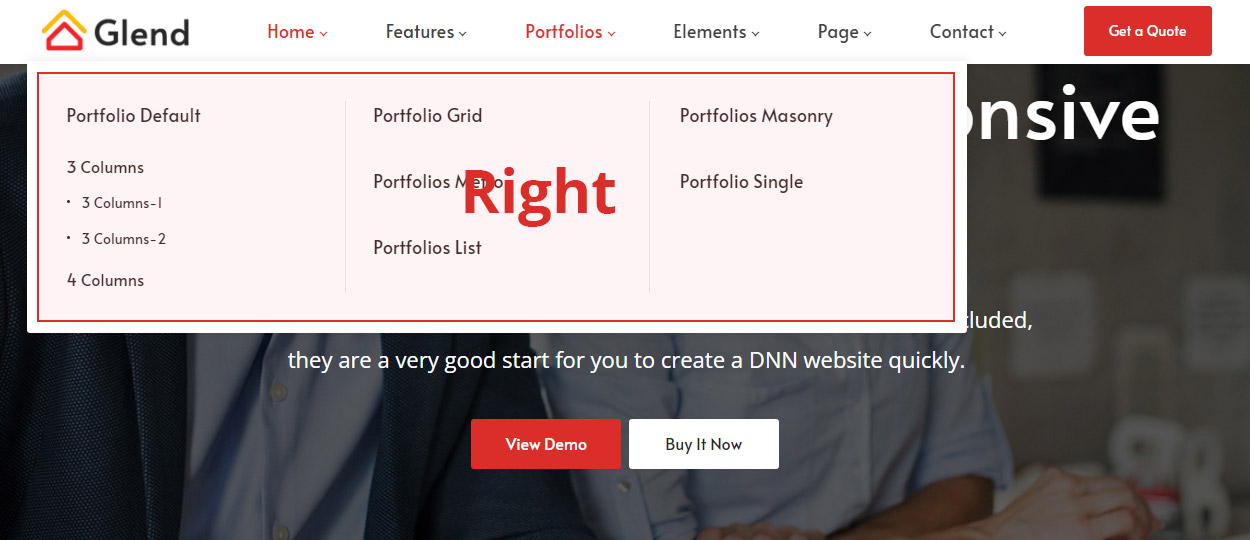
Controls the alignment of the dropdown menu relative to its parent menu item.
- Left — Left-aligned:

- Right — Right-aligned:
- Center — Center-aligned:

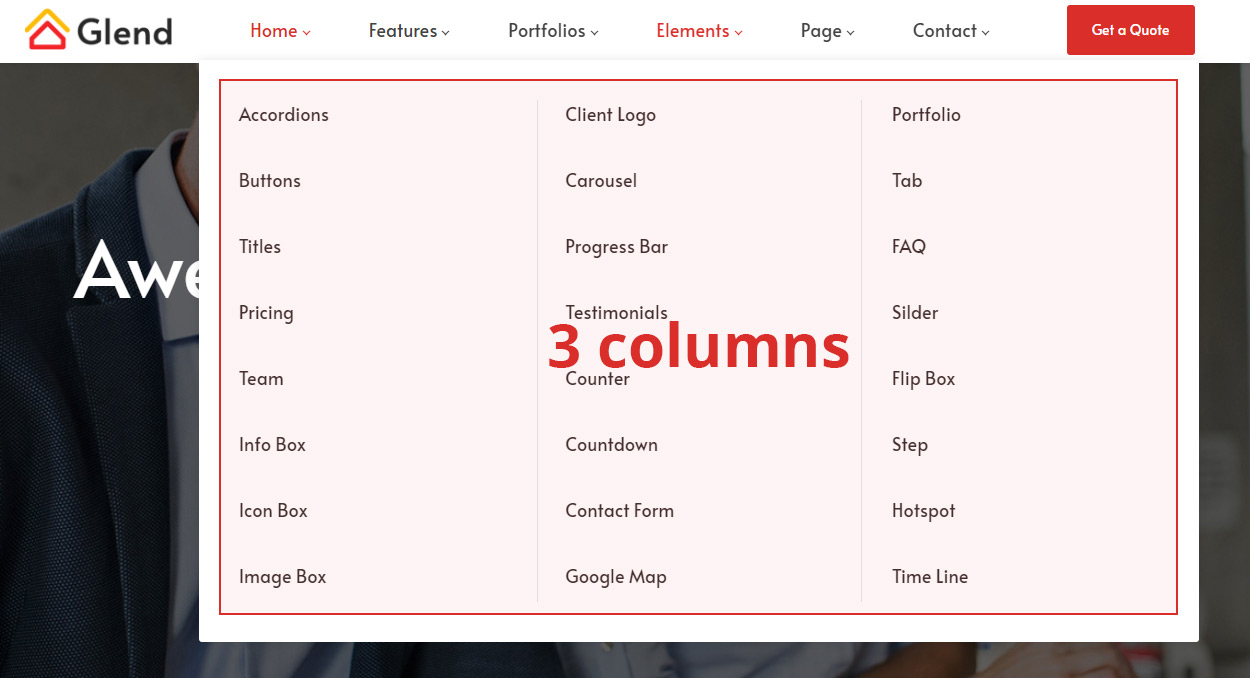
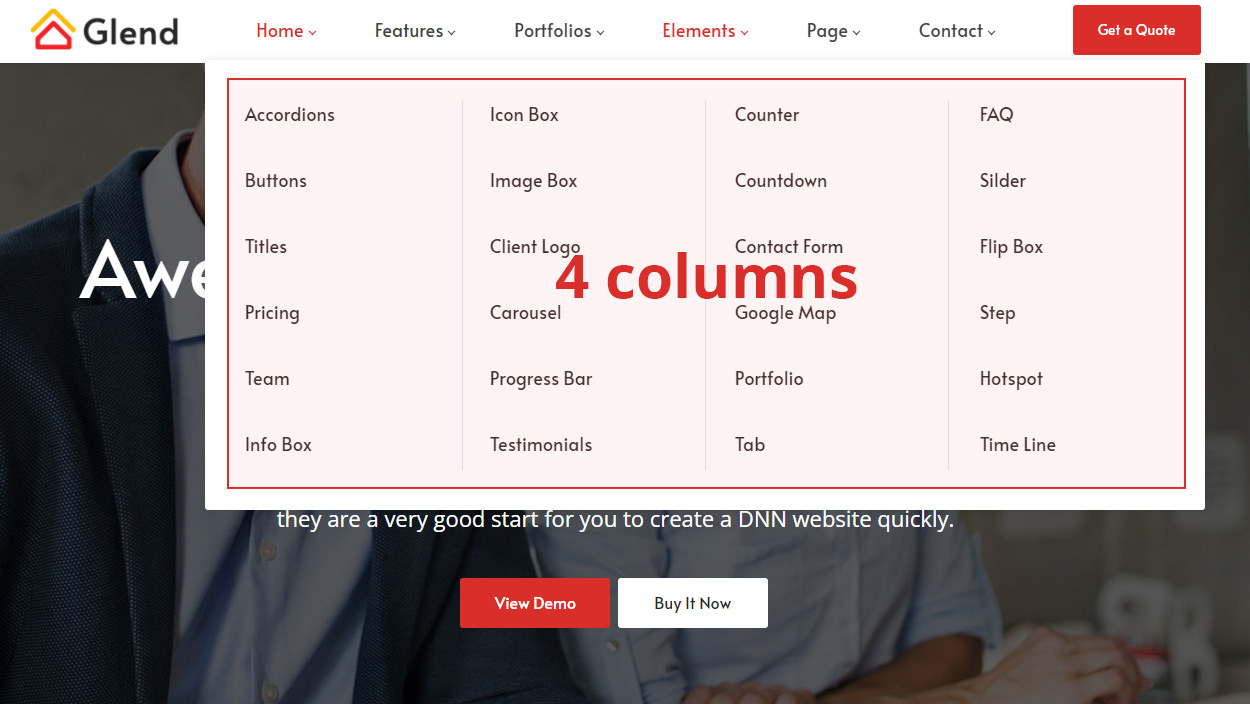
Columns
Sets the number of content columns in the dropdown menu. More columns result in narrower individual columns.
Configuring Custom Mega Menu
Custom Mega Menu allows you to embed custom content in the dropdown panel. Follow these steps:
- Switch the Tab Type to Custom Mega Menu.
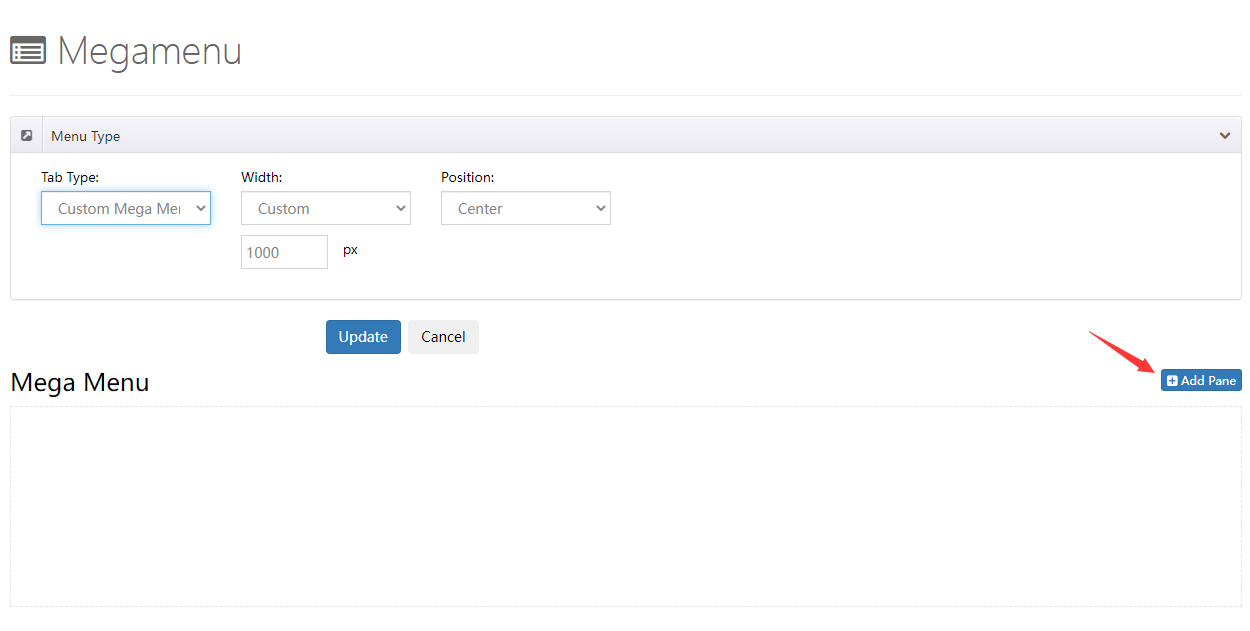
- Click Add Pane to add a panel container.
- Click Add inside the panel to add content widgets. The following three types are supported:
- Menu — Insert a menu link list
- HTML — Insert custom HTML content
- Module — Embed a third-party DNN module
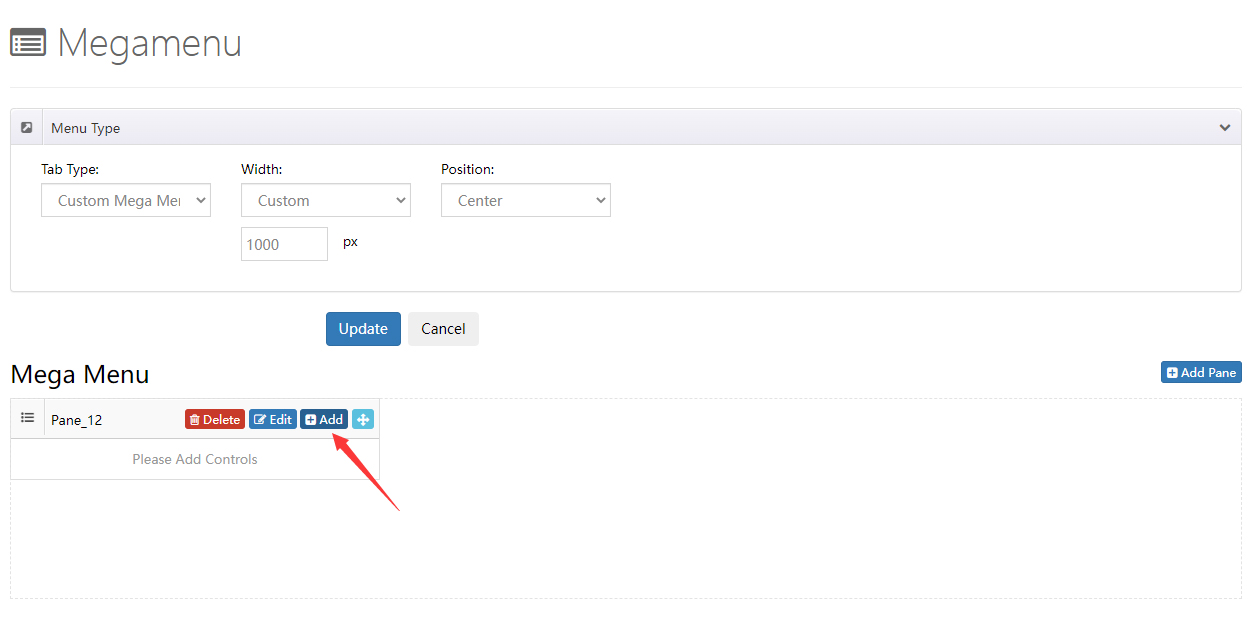
- Multiple panels can be added to the same dropdown menu and are arranged horizontally.
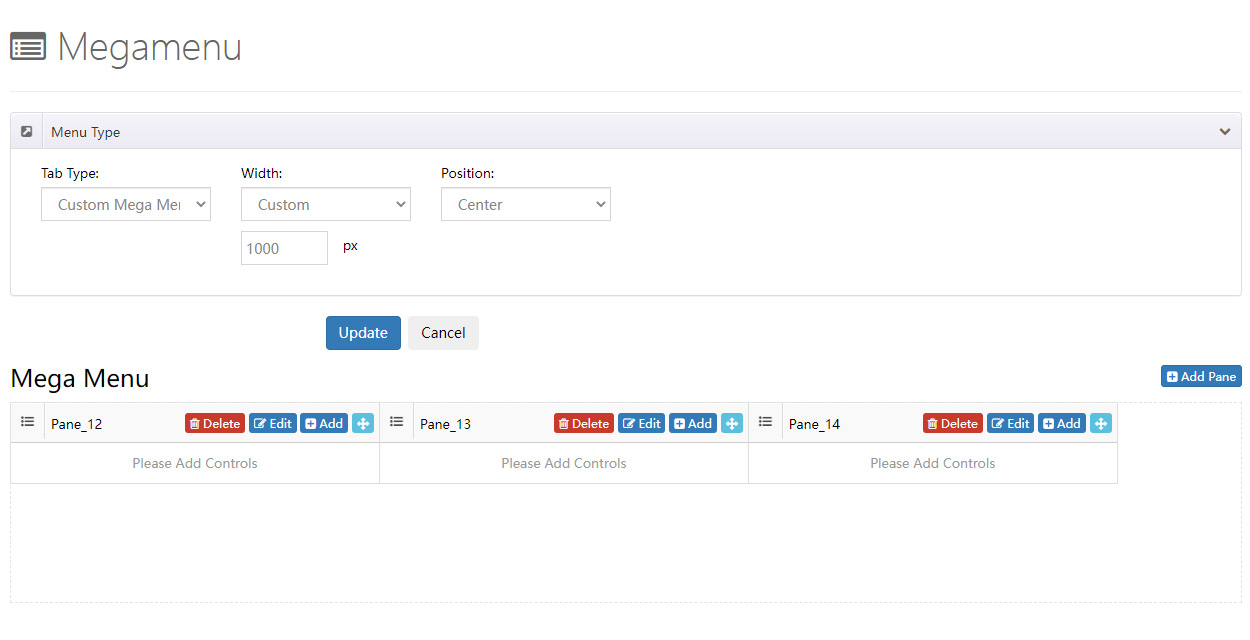
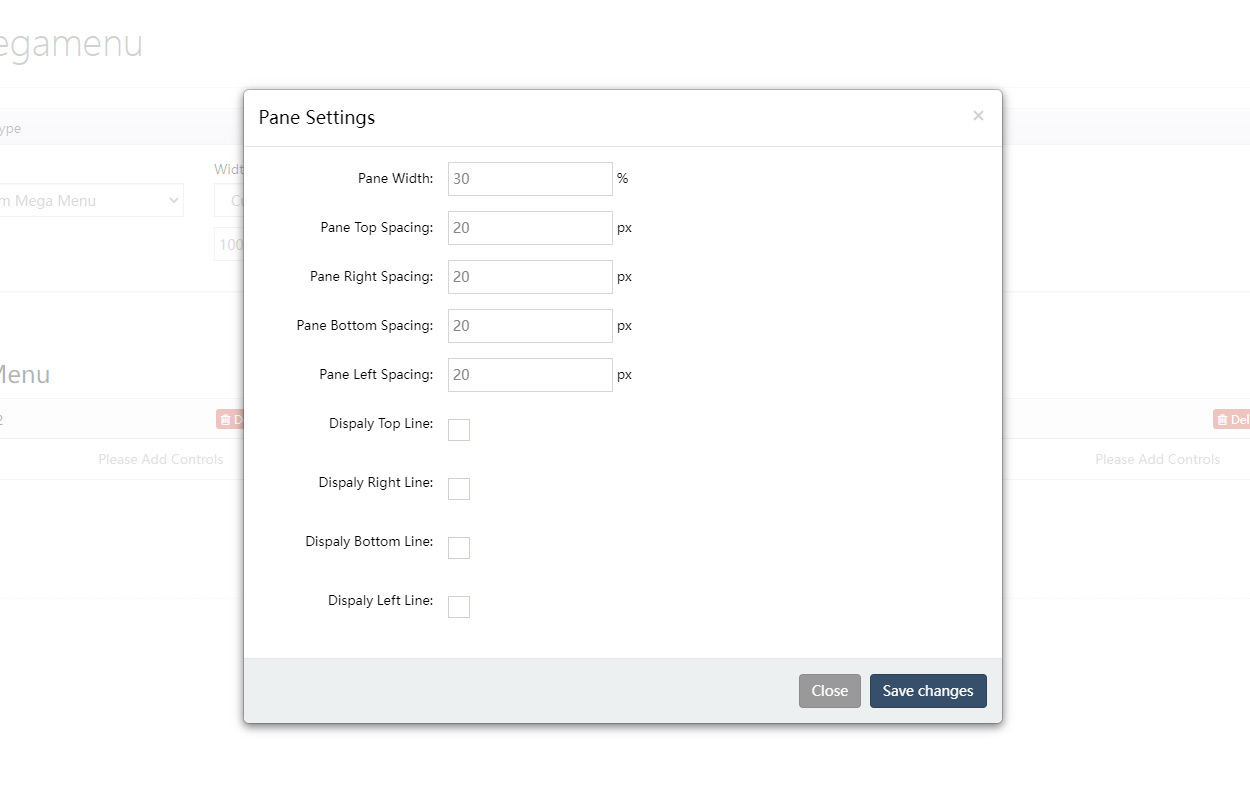
- Click the edit icon in the top-right corner of each panel to individually configure the panel width and spacing between panels.