Appearance
Installation Guide
Requirements
Before installing the Fiwetis theme, make sure your DNN environment meets the following requirements:
- DNN Platform 9.x or higher
- .NET Framework 4.8 or higher
- IIS Web server installed
Installation Steps
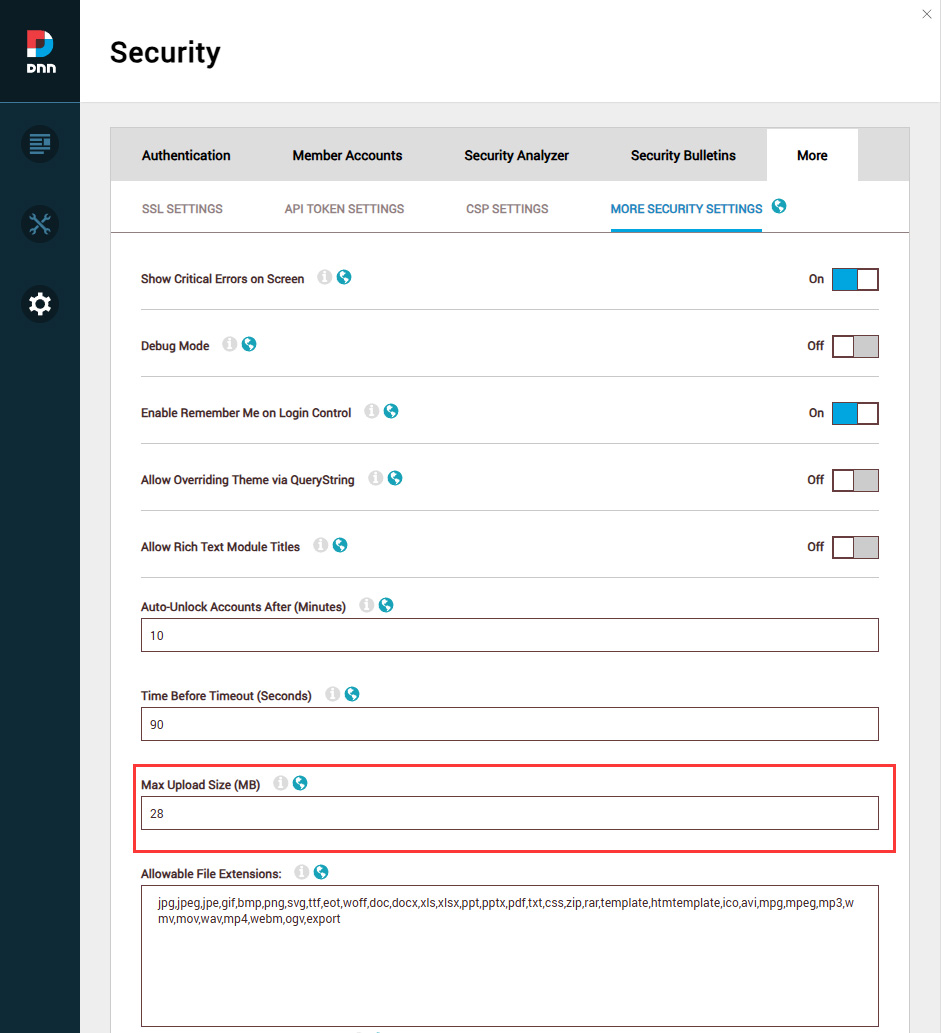
1. Adjust Upload Size Limit
- Log in to the DNN admin panel (using the Host account)
- Go to Settings > Security > More
- Select the MORE SECURITY SETTINGS tab
- Change Max Upload Size to 28 or a larger value
2. Install the Theme Package
- Go to Extensions > Install Extension
- Upload the theme installation package:
Fiwetis-theme_01.00.00.zip - Follow the installation wizard to complete the installation
3. Apply the Theme After Installation
- Go to Manage > Themes
- Select and apply the Fiwetis theme
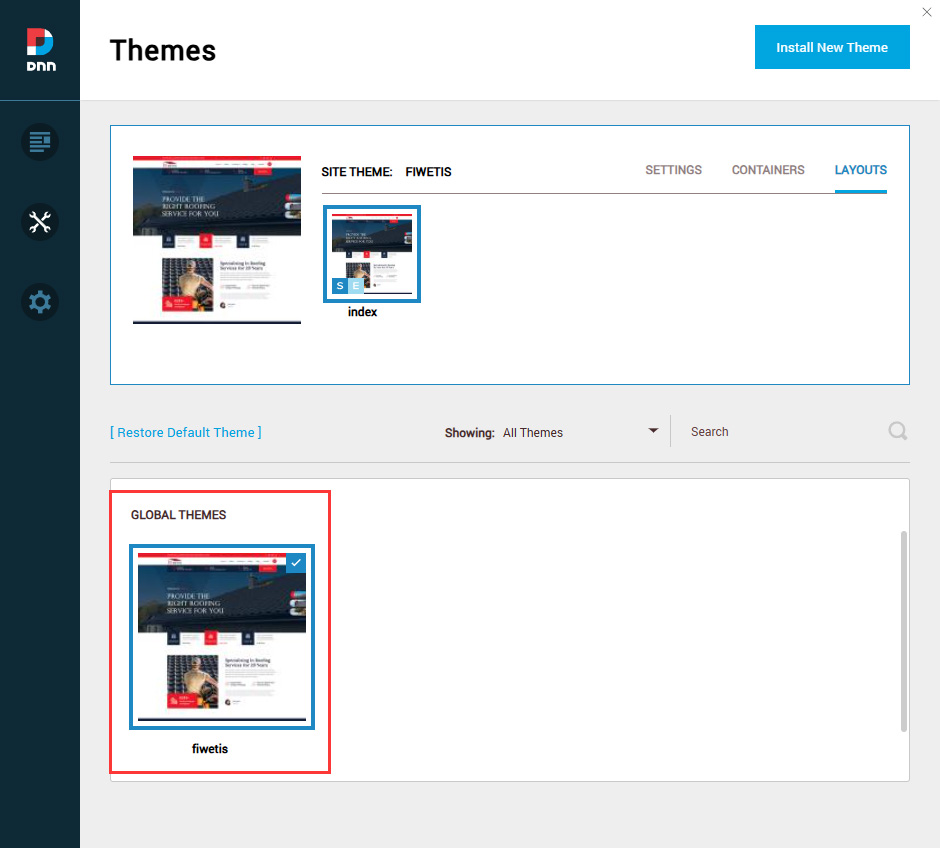
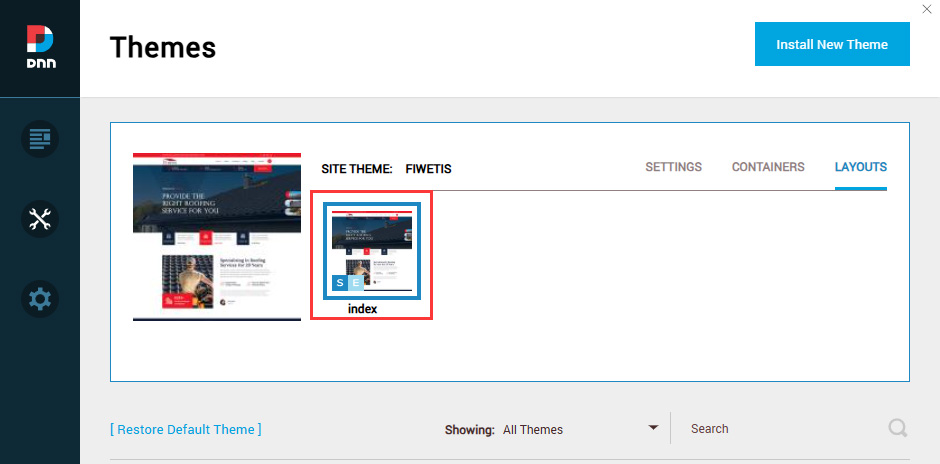
- Set both Site Theme and Edit Theme to Fiwetis – index
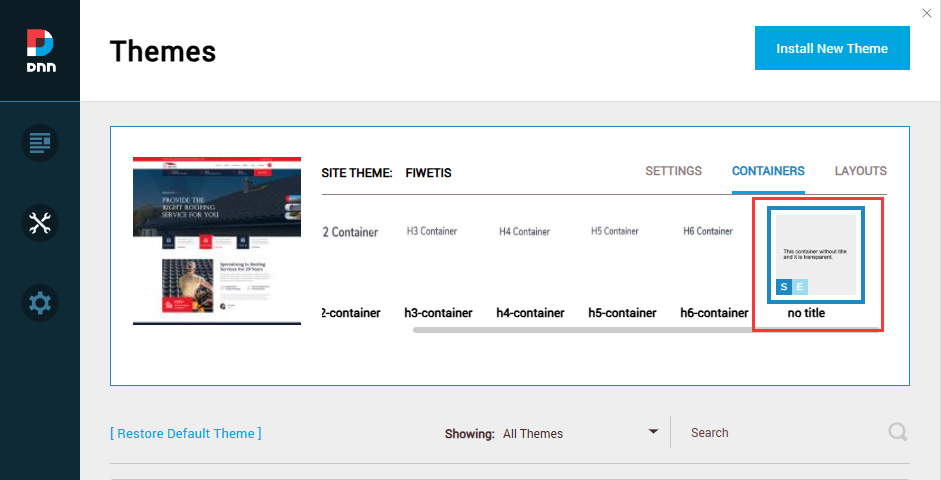
- Set both Site Container and Edit Container to Fiwetis – No Title
4. Install Modules
The Fiwetis theme depends on the following modules. Please install them in order:
| Module Name | Installation Package File | Description |
|---|---|---|
| ThemePlugin Pro | DNNGo_ThemePluginPro_05.02.02_Release_Install.zip | Core theme plugin, required |
| Form Builder | DNNGo_FormBuilder_01.09.00_Release_Install.zip | Form builder |
| LayerGallery Pro | DNNGo_LayerGalleryPro_02.01.01_Release_Install.zip | Layer gallery / carousel |
| DNNGallery Pro | DNNGo_DNNGalleryPro_07.02.01_Release_Install.zip | Image gallery |
| xBlog | DNNGo_xBlog_10.05.00_Release_Install.zip | Blog module |
| xEvent | DNNGo_xEvent_04.02.01_Release_Install.zip | Event management module |
5. Initial Setup
Before applying the theme to a new site, complete the initialization by following these steps.
- Log in to your site as a SuperUser
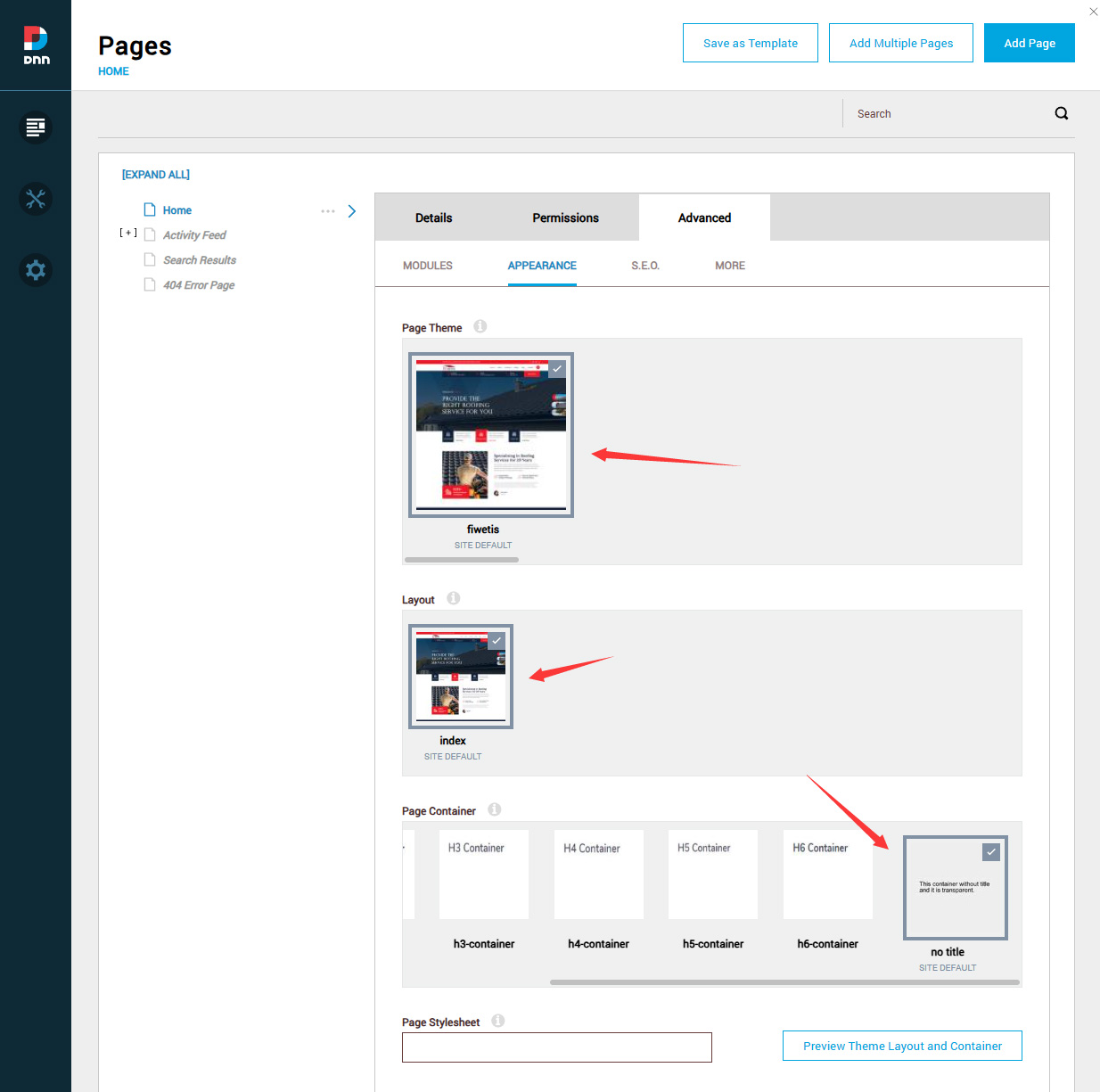
- Create a blank page
- Set the page Theme to Fiwetis, Layout to index, and Container to No Title
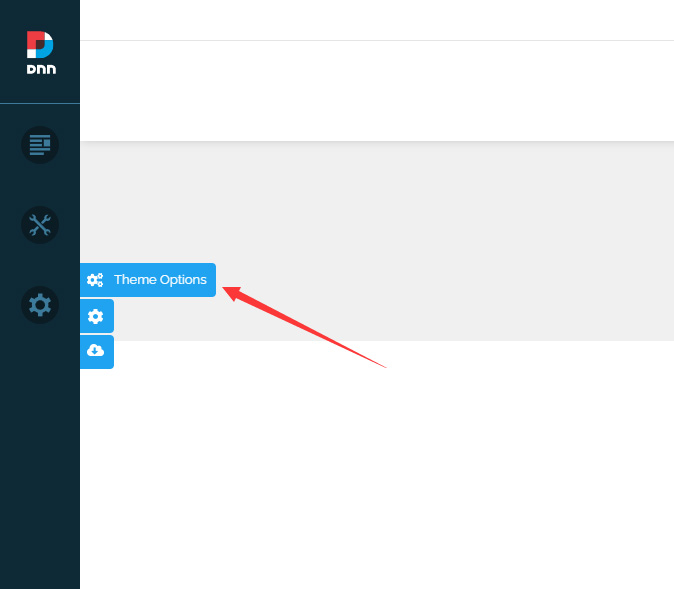
- Click the Theme Option button on the left side of the page
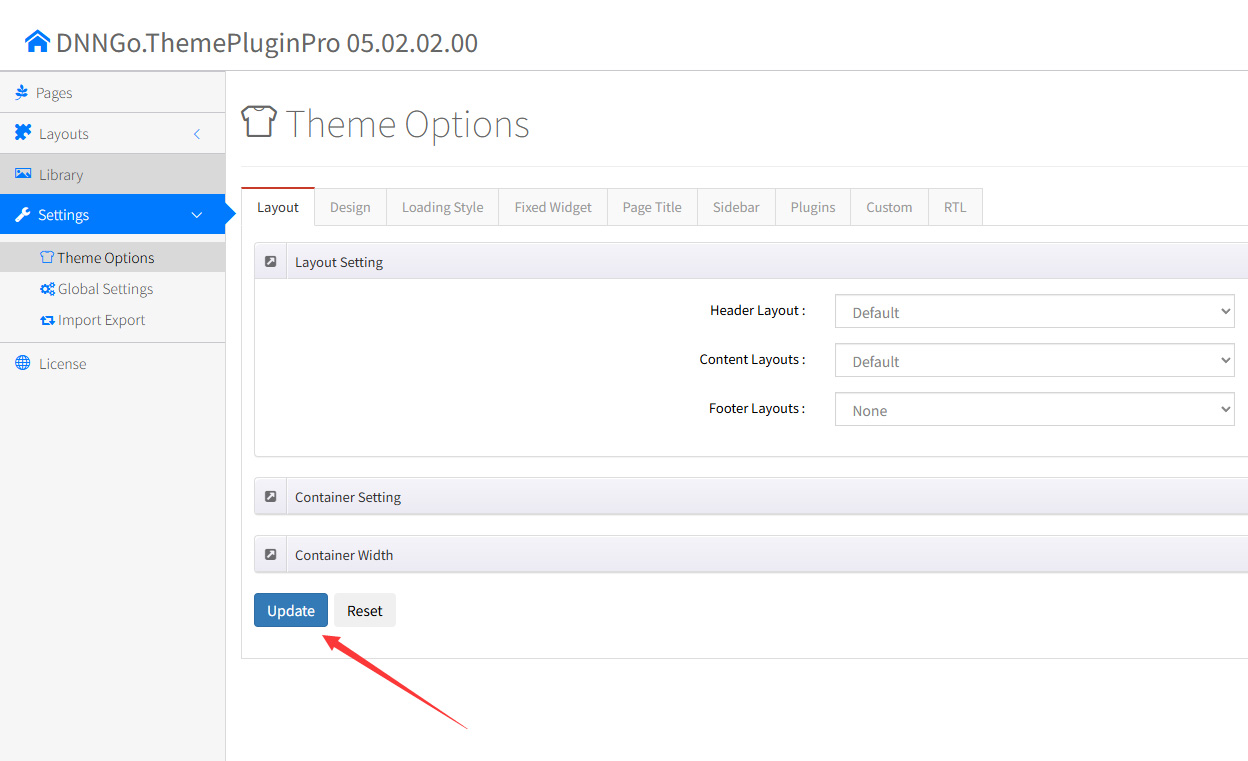
- Click the Update button to complete the initialization
6. Upload Resource Files
The Content Builder module contains a large number of resource files and preset templates that need to be manually uploaded to the server via FTP.
Locate the ContentBuilder folder in the product package, and use an FTP tool to upload it to the Portals/_default directory of your site. Because there are many files, the upload may take a while to complete. Once it finishes, the Content Builder module is ready to use.
7. Import Page Templates
Please refer to Import Page Templates
FAQ
Missing dependencies when installing modules
Make sure to install the ThemePlugin Pro module first, as other modules depend on this core plugin.
Technical Support
If you have any questions, please contact: dnnskindev@gmail.com