Appearance
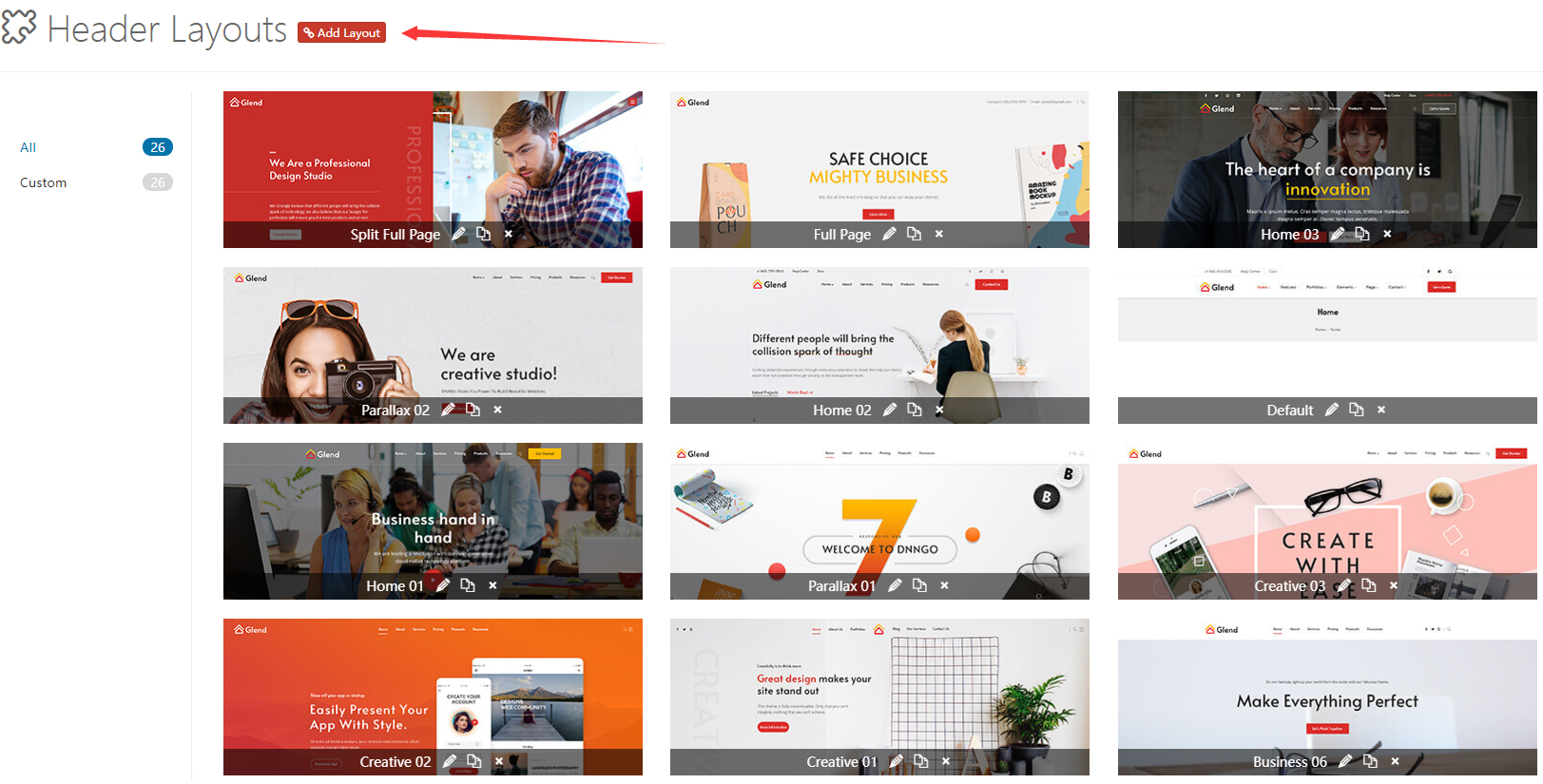
Header Layouts
This theme includes all header layouts used in the demo site. You can edit them or create your own layouts.
Note
Due to browser caching, your changes may not appear immediately after saving. Press Ctrl+F5 to refresh the page.
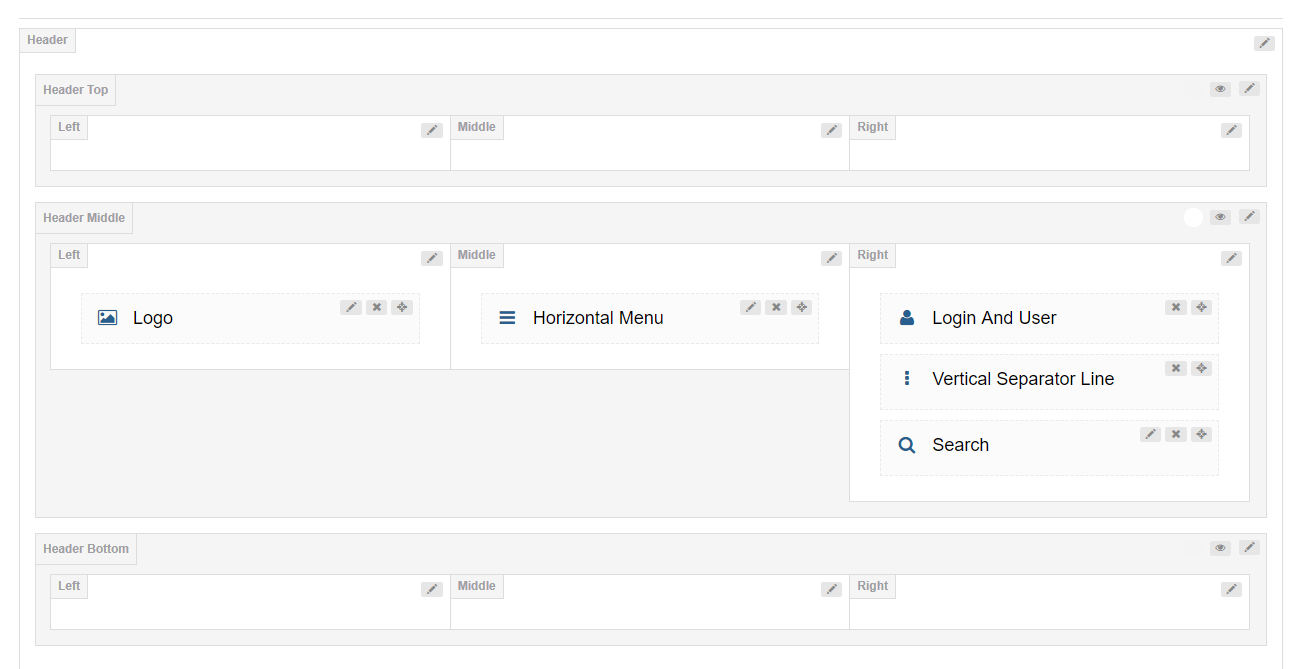
9-Grid Areas
The header is divided into 3 rows, each with 3 columns. You can add controls in each row.
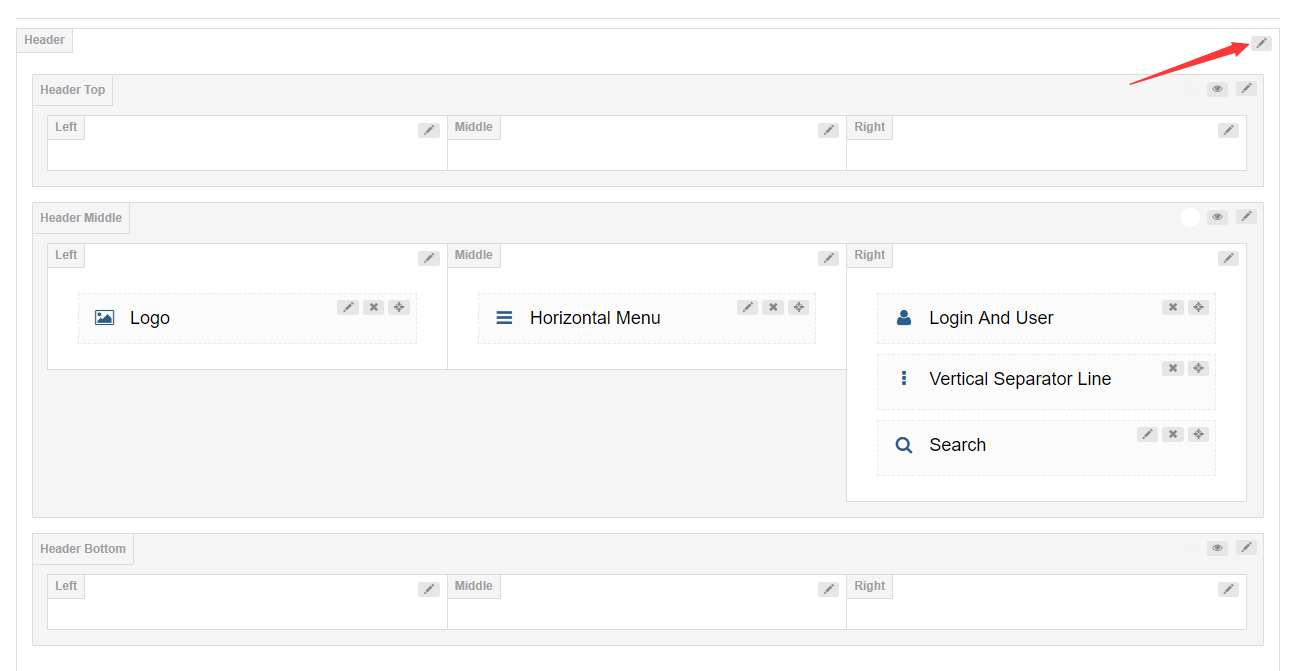
Header Settings
Click the edit icon to enter the header settings interface.
- Header Position — Set whether the header floats above the Banner or page title
- Sticky Header — When scrolling the page, the header is fixed at the top
- Sticky Header Type — Set the display style of the sticky header
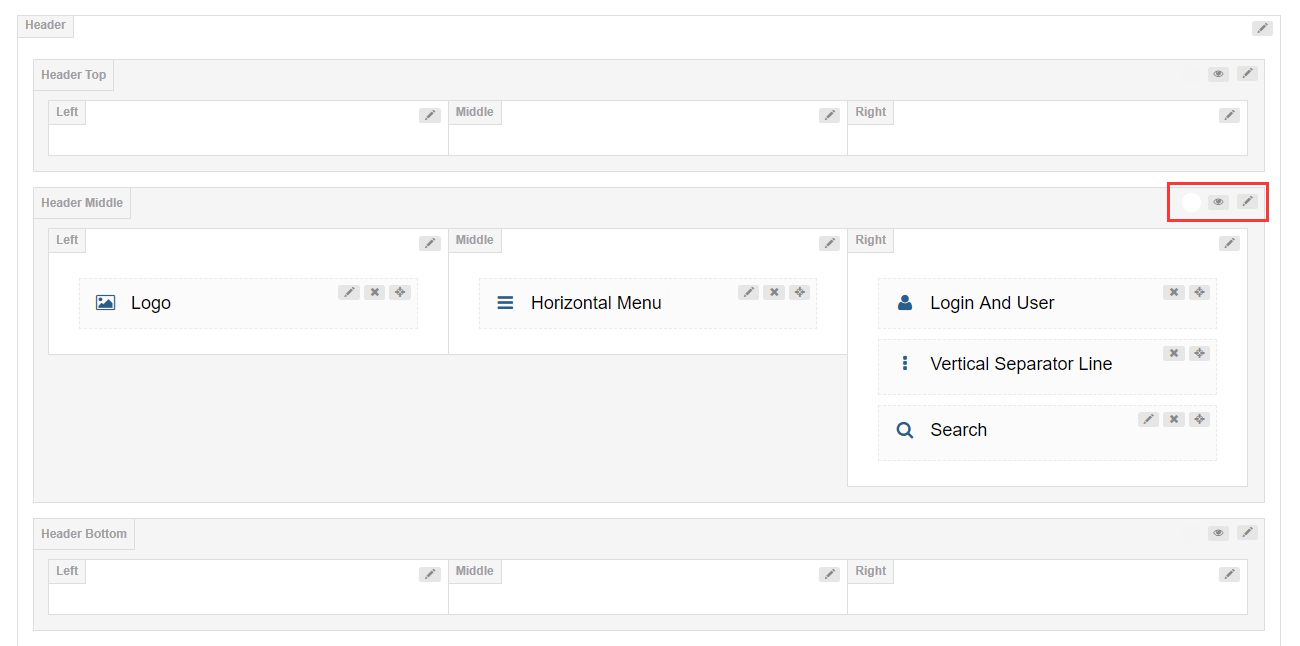
Header (Top / Middle / Bottom) Settings
By default, the header top and header bottom are hidden. You need to click the eye icon to enable these two areas, or click the edit button to configure them.
General
- Row Height (px) — Set the height of the header area
- Layout — Set the width of the header content area, full width or fixed width
- Area Spacing (px) — Set the spacing between the left, center, and right columns
- Control Spacing (px) — Set the distance between controls within a column area
- Grid Divider — Set whether to display a divider line between each grid

- Bottom Line — Set whether to display a divider line at the bottom of each area

- Show Shadow — Set whether to display a gray shadow at the bottom of each area

- Accent Color — Set the accent color for each area, usually the color when hovering or clicking a control

- Extra Class — Add extra CSS class names for each area
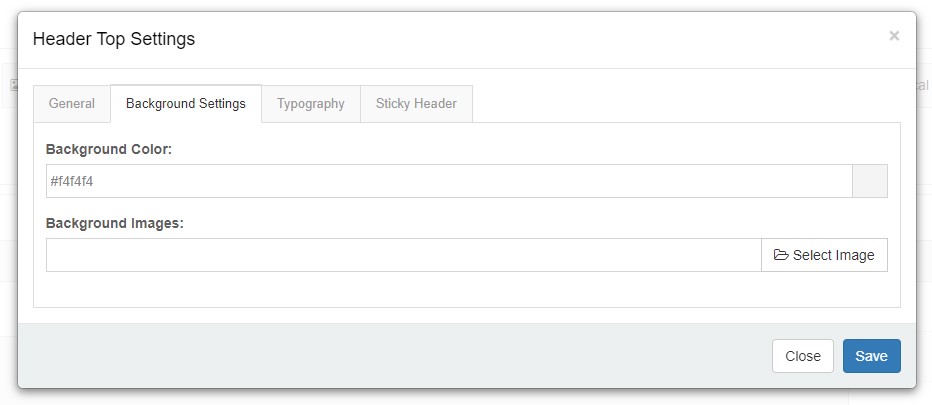
Background Settings
You can set the background color and background image for the header area.
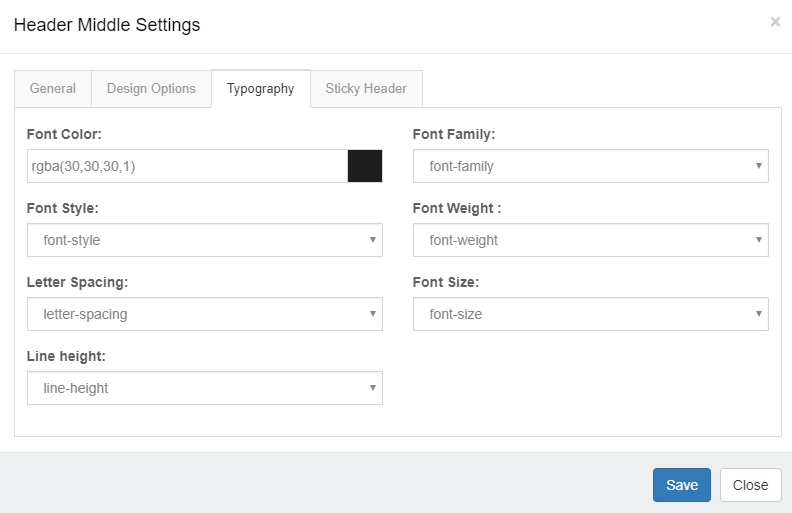
Typography
You can set the text style for the header area, such as text size, color, font, etc.
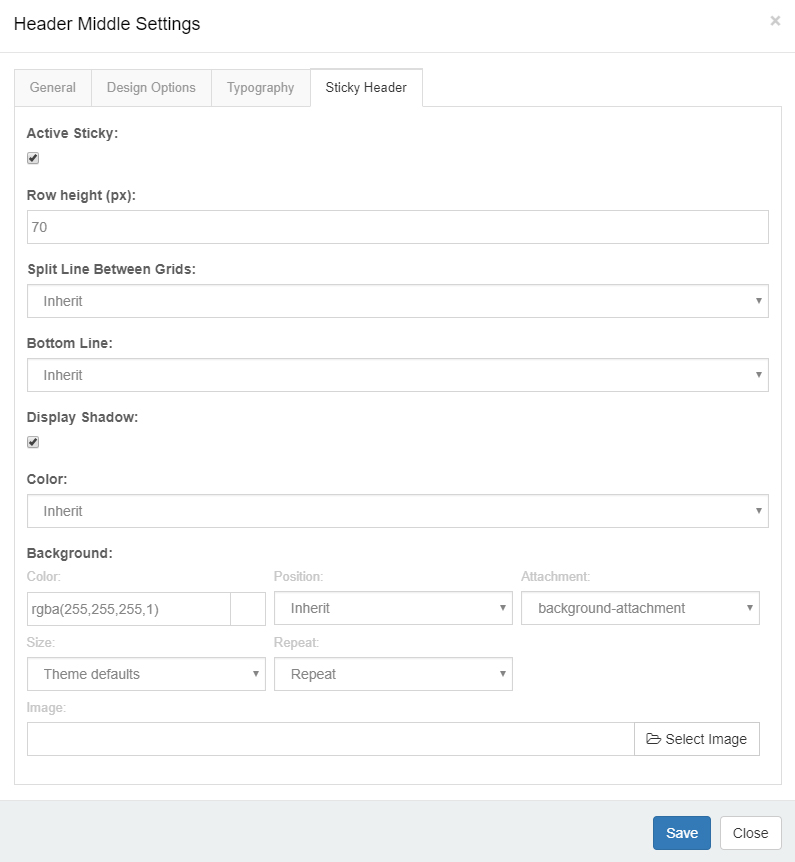
Sticky Header
You can independently set whether to display this header area in the sticky header, and the style of the sticky header.
Header Column Settings
General
- Column Width — Set the width of the column
- Alignment — Set the alignment of controls, vertical or horizontal
- Text Alignment — Set the text alignment
Background Settings
You can set the background color and background image for the column.
Mobile Header Settings
Click the phone icon to switch to the mobile header layout settings interface. The mobile header is divided into three areas: left, center, and right. You can add controls and panes in each area.
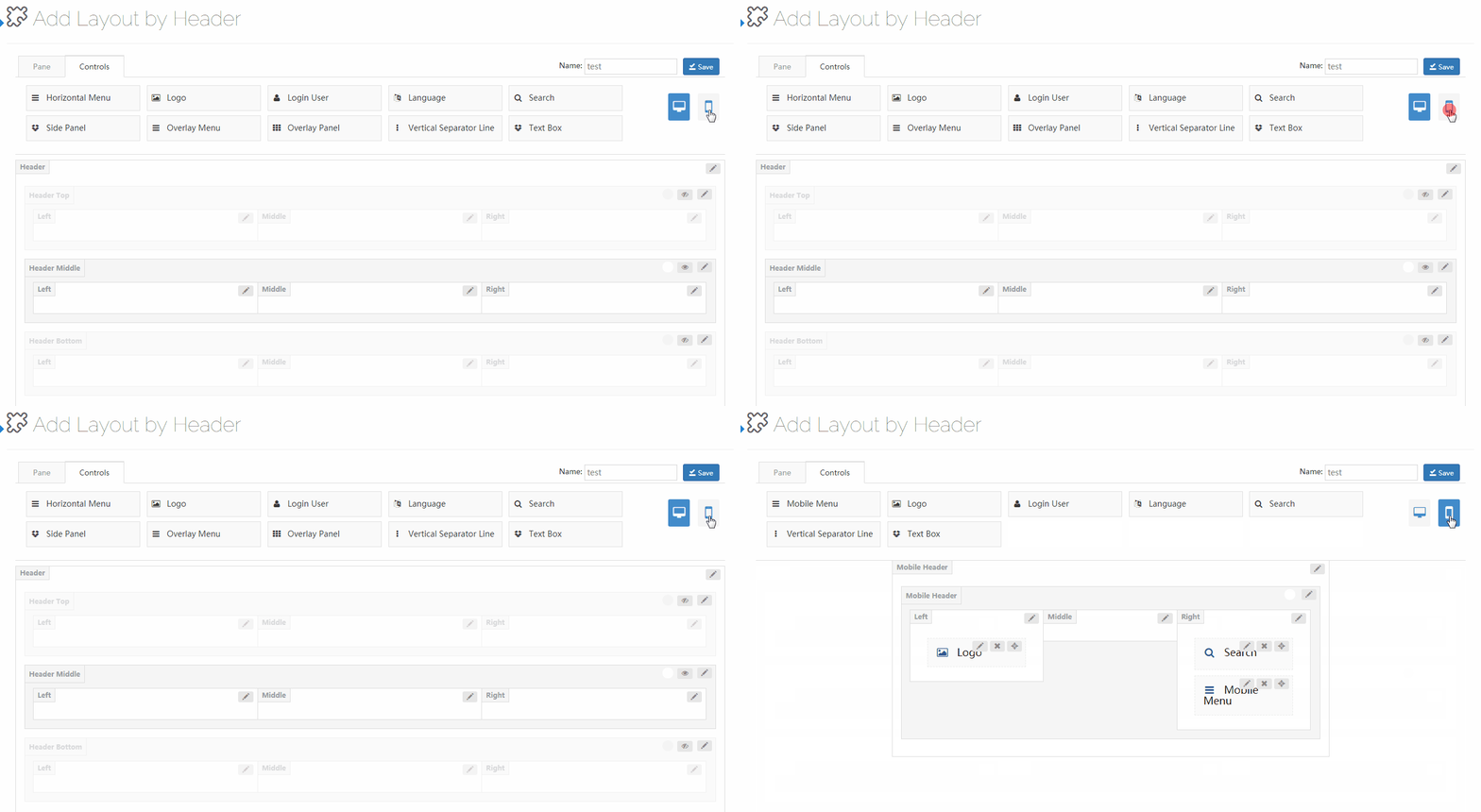
Controls
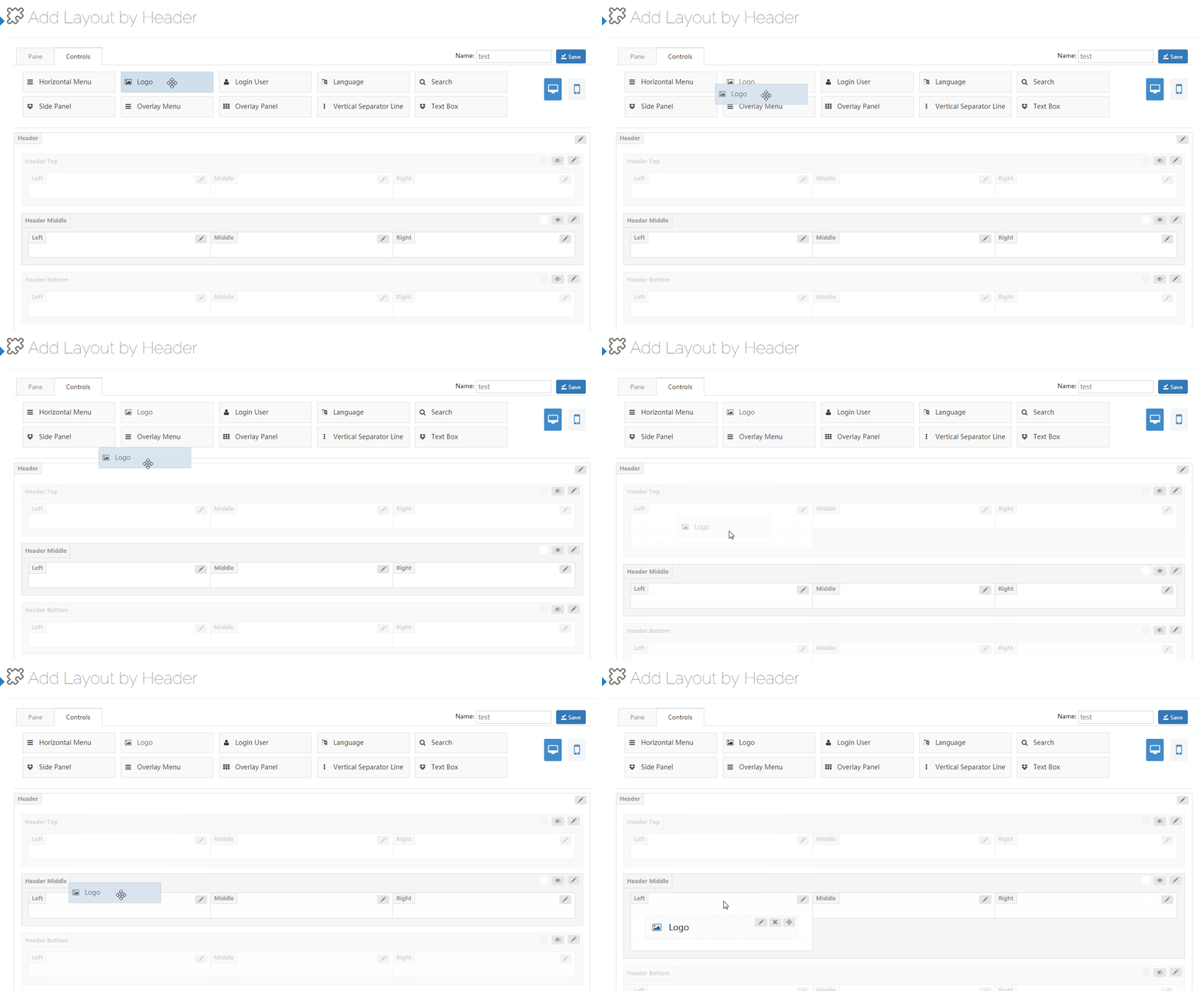
Controls are custom modules that you can drag and drop to any position.
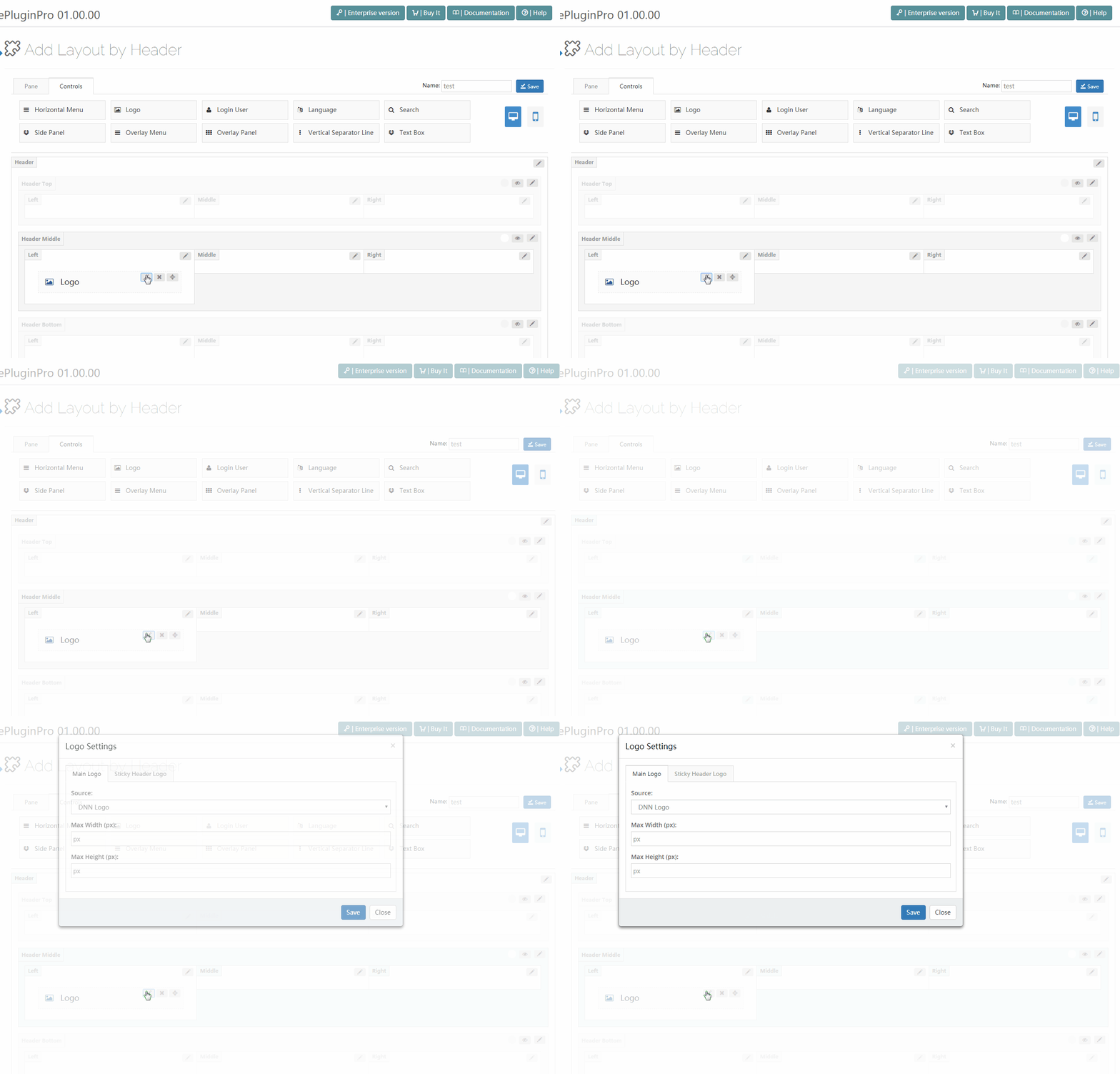
Click the edit button next to a control to open the settings interface, which contains the settings for all controls.
Logo
Use the Logo control to display a logo image in the header.

The Logo settings interface contains 2 areas: Main Logo settings and Sticky Header Logo settings.
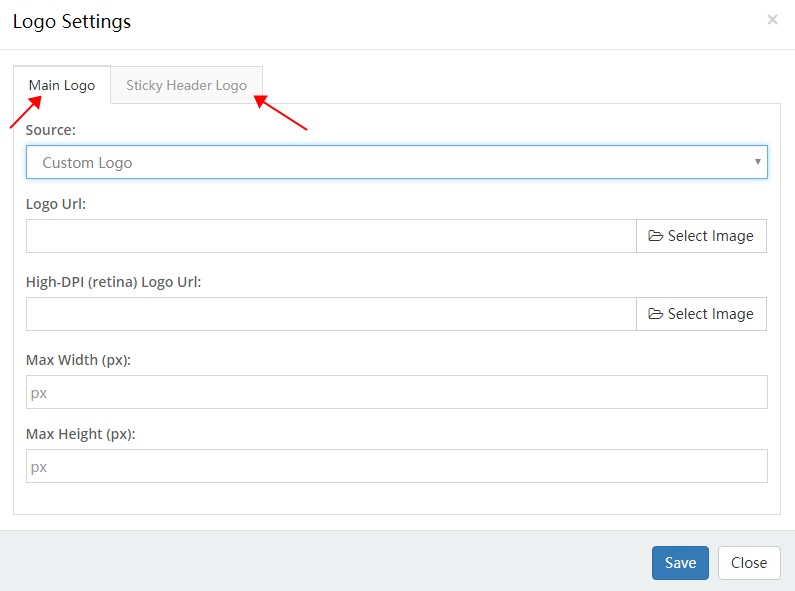
Main Logo
- Source — Set the source of the logo image, from the DNN site logo or a custom logo. The DNN site logo needs to be configured in Admin > Site Settings
- Logo URL — Set the custom logo image
- Retina Logo URL — Set the logo image for high-resolution screens. The image name must have a -2x suffix, for example: logo-d-2x.png
- Max Width — The maximum width of the logo
- Max Height — The maximum height of the logo
Sticky Header Logo
- Source — Set the source of the logo image in the sticky header
Horizontal Menu
Use the Horizontal Menu control to display a navigation menu in the header.

The Horizontal Menu settings interface contains 3 areas: Main Menu settings, Flyout Menu settings, and Mega Menu settings.
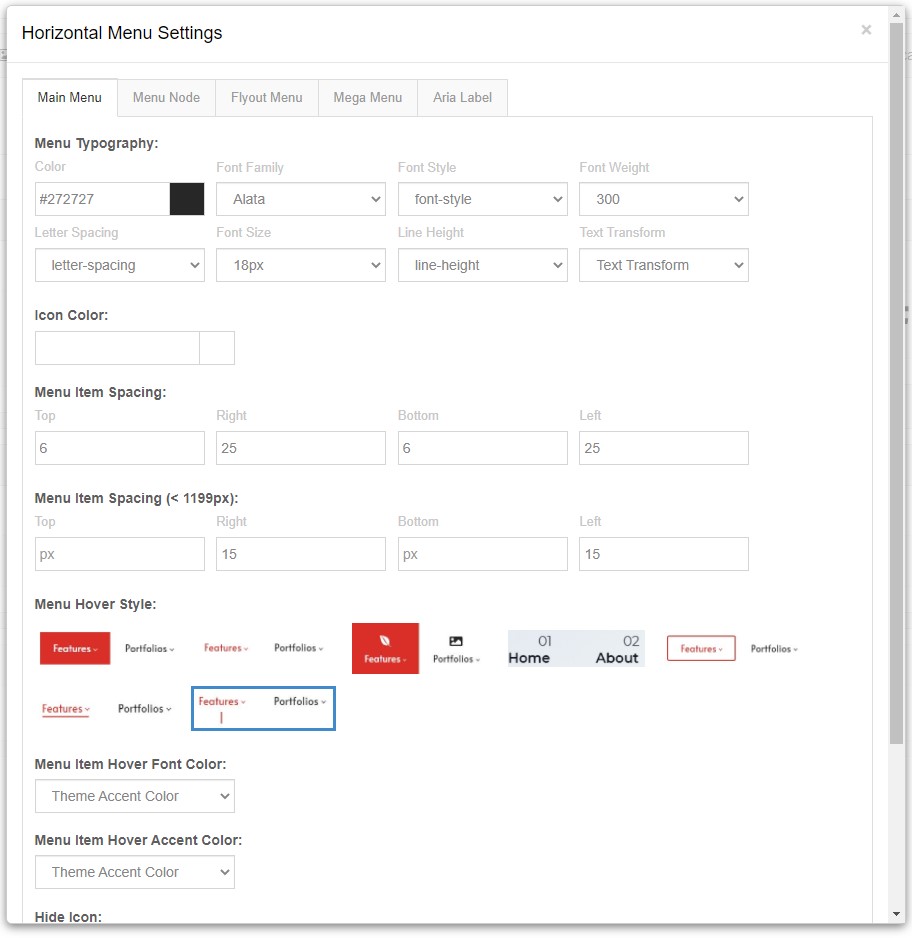
Main Menu
- Menu Typography — Set the text style of the first-level menu, such as text size, color, font, etc.
- Menu Item Spacing — Set the top, bottom, left, and right spacing of menu items

- Menu Hover Style — Set the appearance style when hovering over the menu. There are 4 styles available
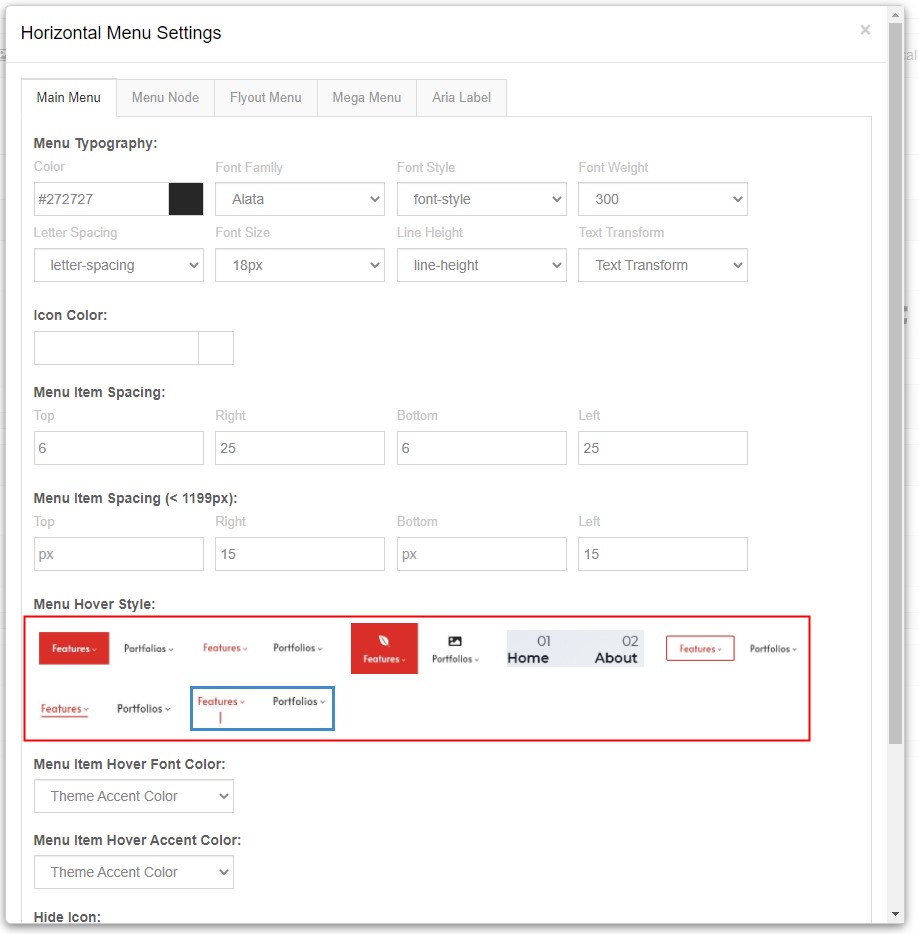
- Menu Item Hover Font Color — Set the text color when hovering over a menu item
- Menu Item Hover Accent Color — Set the accent color when hovering over a menu item
- Menu Item Border Radius — Set the border radius of menu items
- Show Middle Logo — Set whether to display a logo in the middle of the menu

Flyout Menu
- Menu Typography — Set the text style of the flyout menu
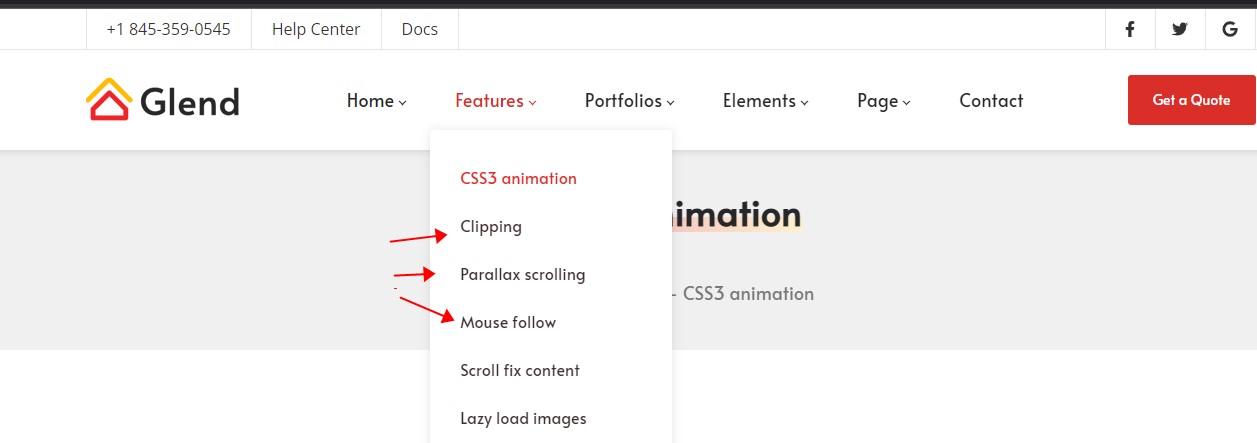
- Show Shadow — Set whether to display a shadow
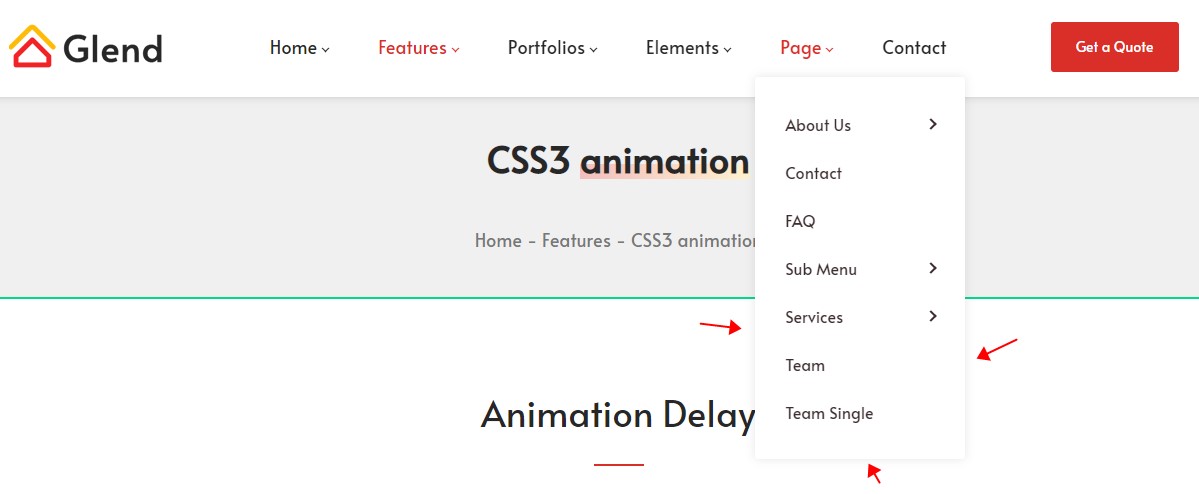
- Background — Set the background of submenus
Mega Menu
- Menu Typography — Set the text style of the Mega Menu
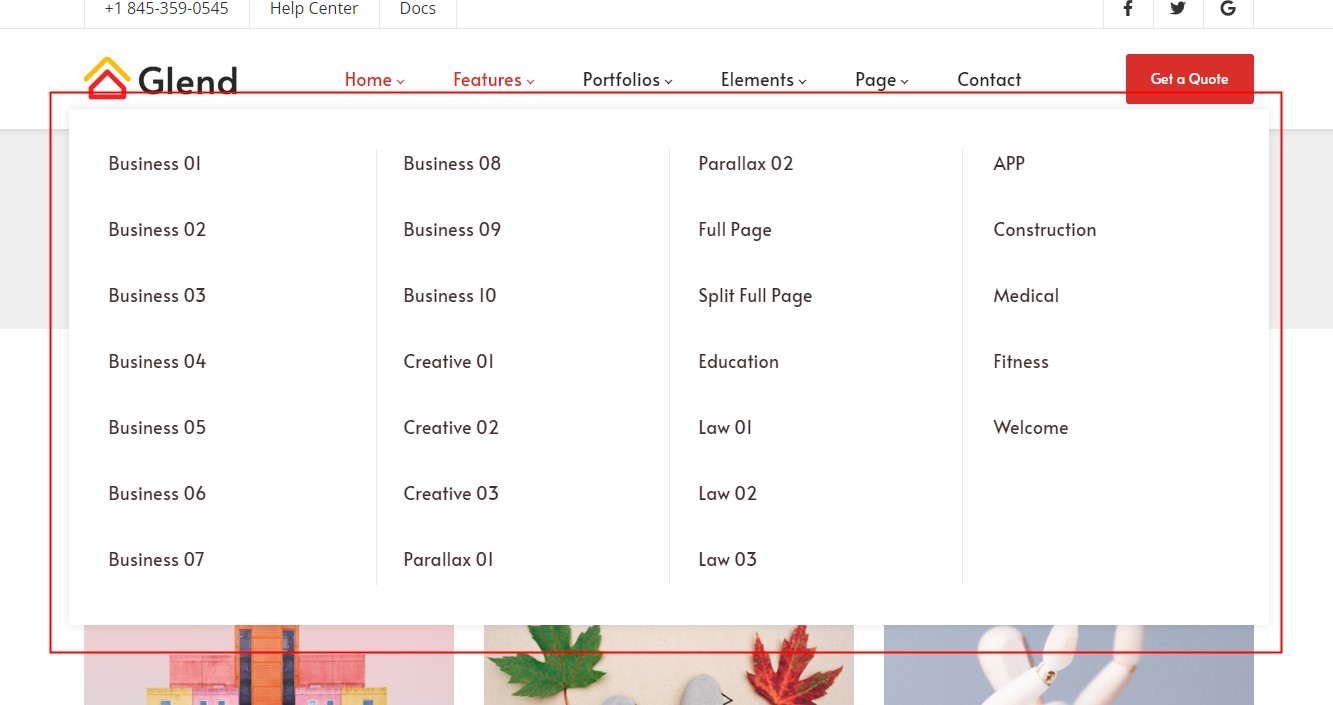
- Menu Title Typography — Set the text style of menu titles
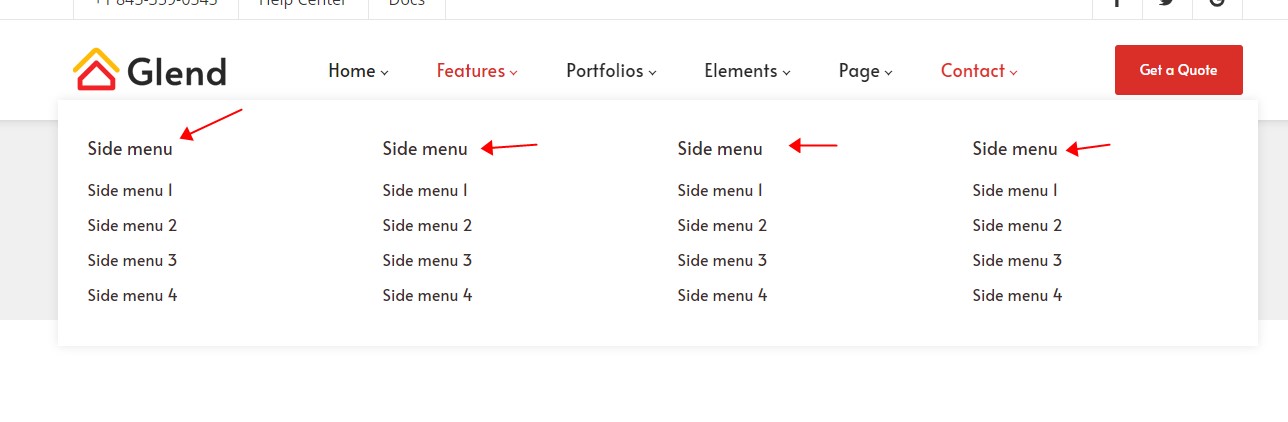
- Show Shadow — Set whether to display a shadow
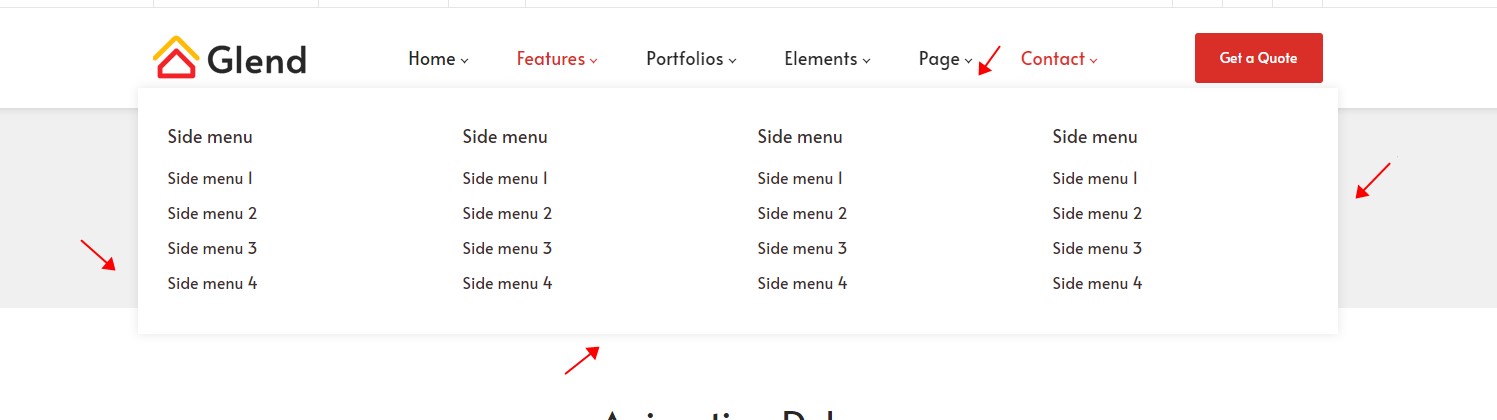
- Line Color — Set the color of the vertical divider line
Login User
Use the Login User control to display login and registration links in the header.

The text color of logged-in users can be set in Header Settings > Typography.
Language
Use the Language control to display a language selector in the header.

There are 7 language selector styles:
| Style | Preview |
|---|---|
| Style 1 | 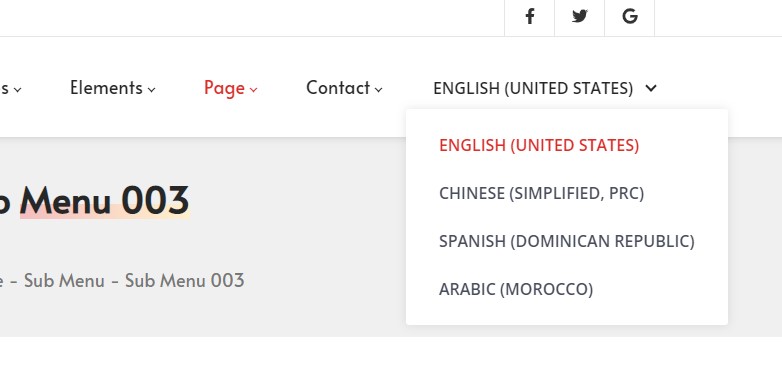 |
| Style 2 | 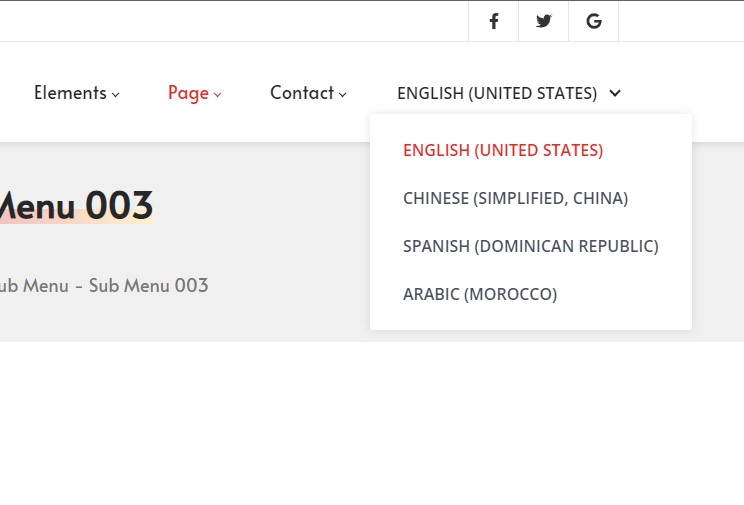 |
| Style 3 | 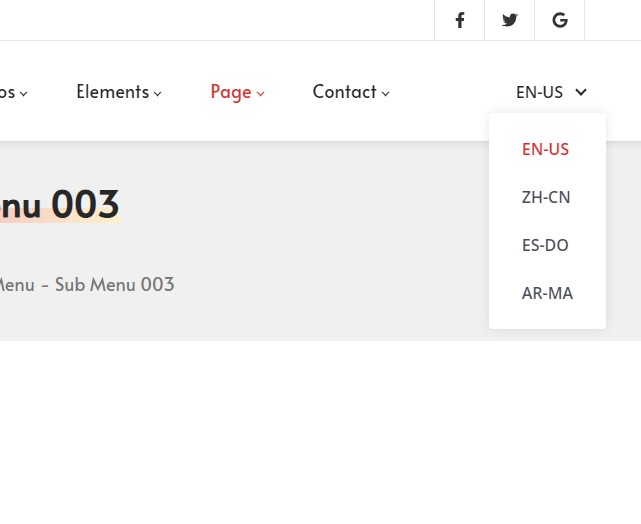 |
| Style 4 | 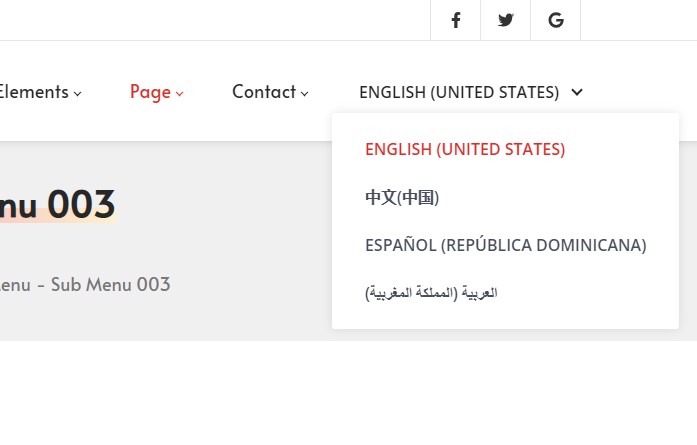 |
| Style 5 | 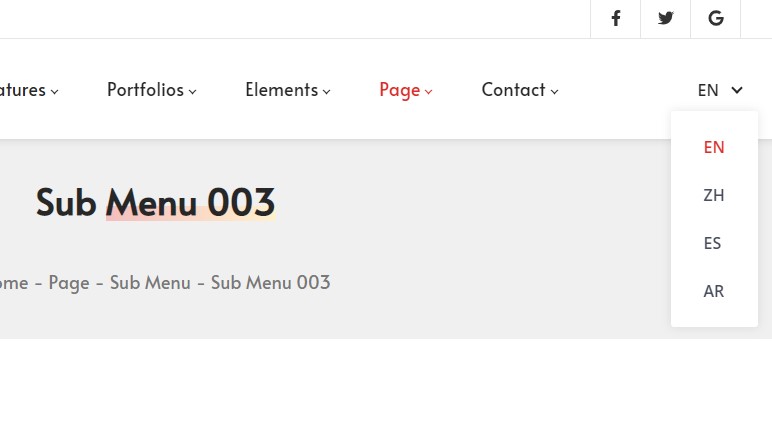 |
| Style 6 | 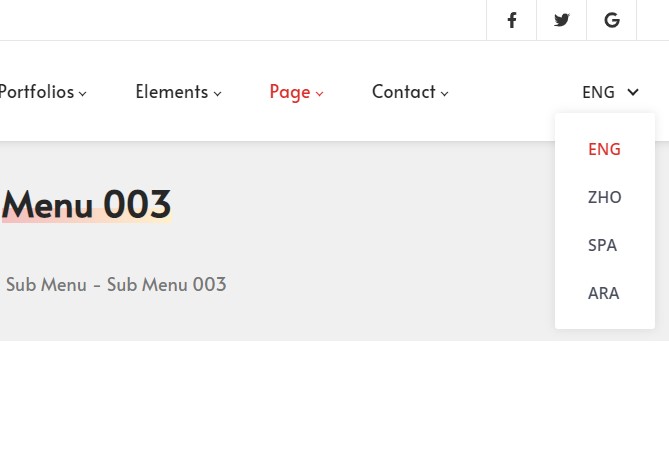 |
| Style 7 | 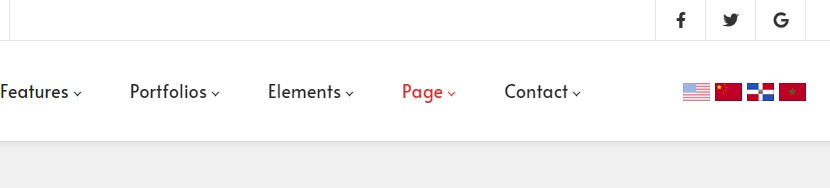 |
Google Translate
Use the Google Translate control to display a language translation selector in the header, allowing users to translate page content.

- Default Language Text — Set the default language
- Google Translate Languages — Add language options
Note
This control does not work in DNN edit mode.
Search
Use the Search control to display a search input box in the header.
- Placeholder — The default placeholder text for the search box
- Style — Set the style of the search panel
- Accent Color — Set the accent color
Vertical Separator
Use the Vertical Separator control to display a vertical divider line in the header.

The color of the vertical separator can be set in Header Settings > Typography.
Text Box
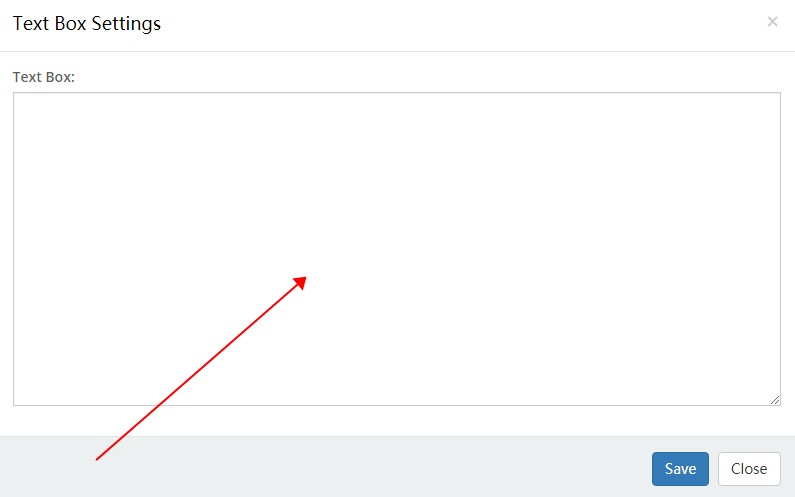
Use the Text Box control to enter text or HTML code.

- Text Box — Code editing area
Mobile Menu
The Mobile Menu control is a mobile header control.
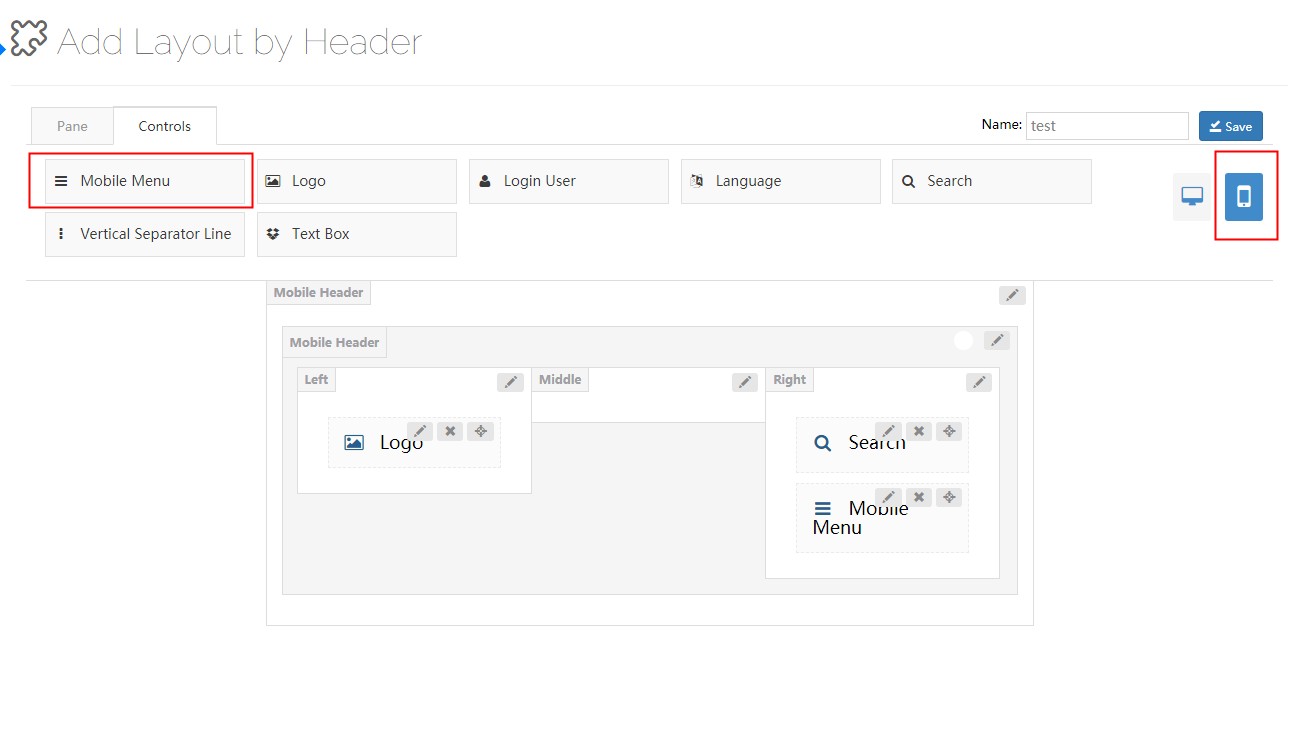
Click the navigation icon to open the menu.

- First Level Menu Typography — Set the text style of first-level menu items
- Second Level Menu Typography — Set the text style of second-level menu items
- Third Level Menu Typography — Set the text style of third-level menu items
- Active Color — Set the text color of the current menu item