Appearance
Content Layouts
This theme includes all content layouts used in the demo site. You can edit them or create your own layouts.
Note
Due to browser caching, changes may not appear immediately after saving. Please press Ctrl+F5 to refresh the page.
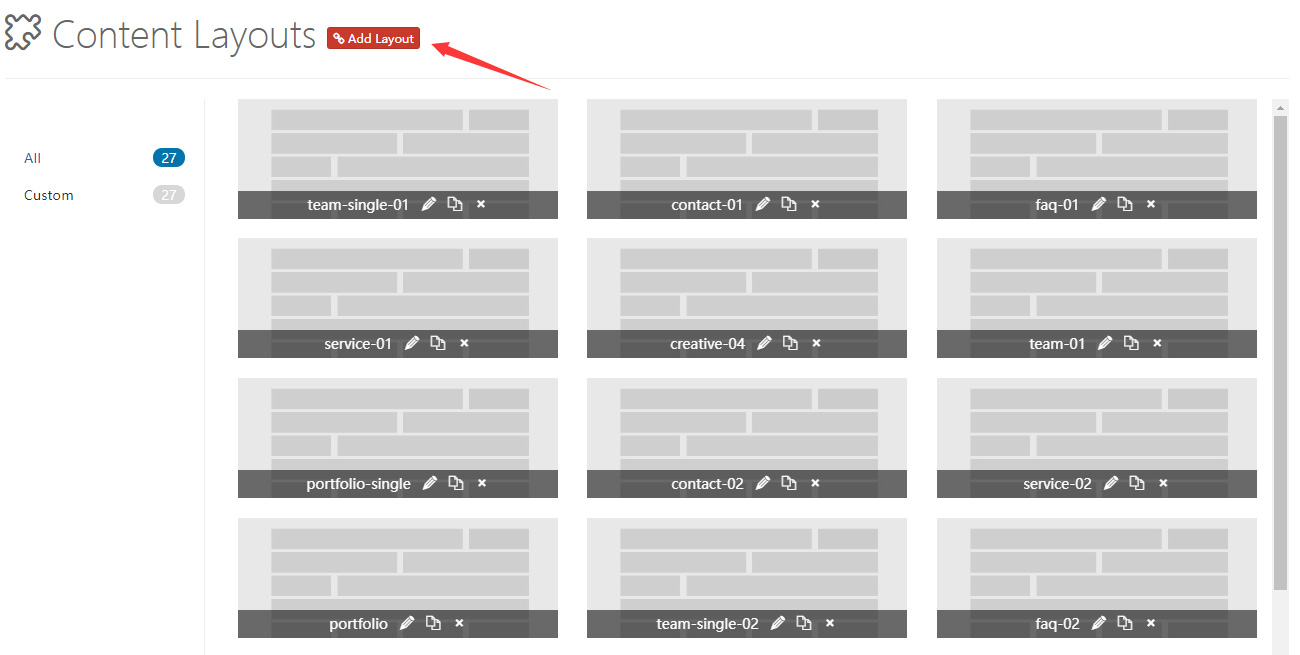
Control Panel Area
After clicking Add Layout, you will enter the content layout control panel area. The theme includes some default layouts that you can modify and delete. Don't forget to save when finished.
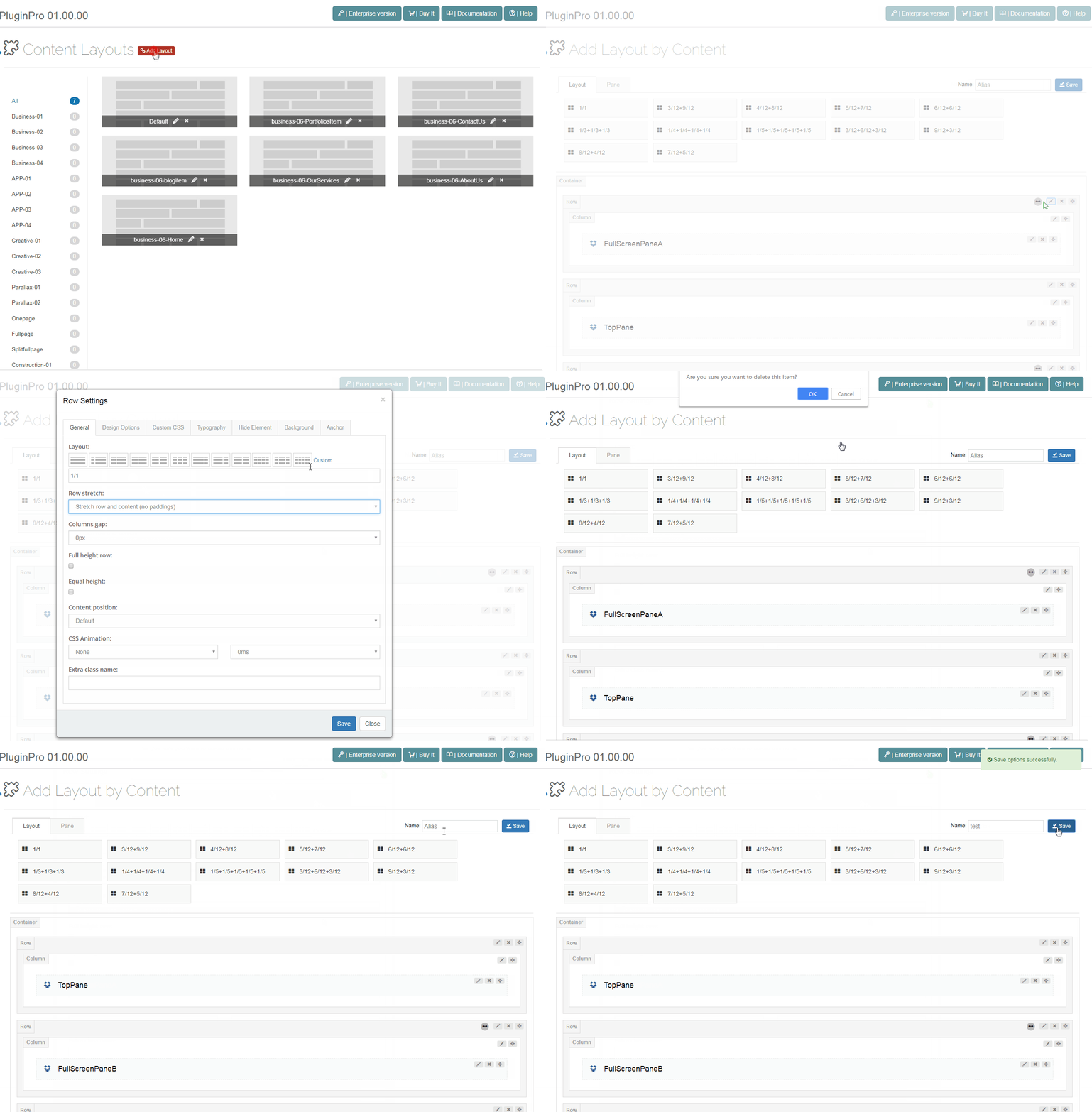
Layout
Select the layout you need and drag it into the container area.
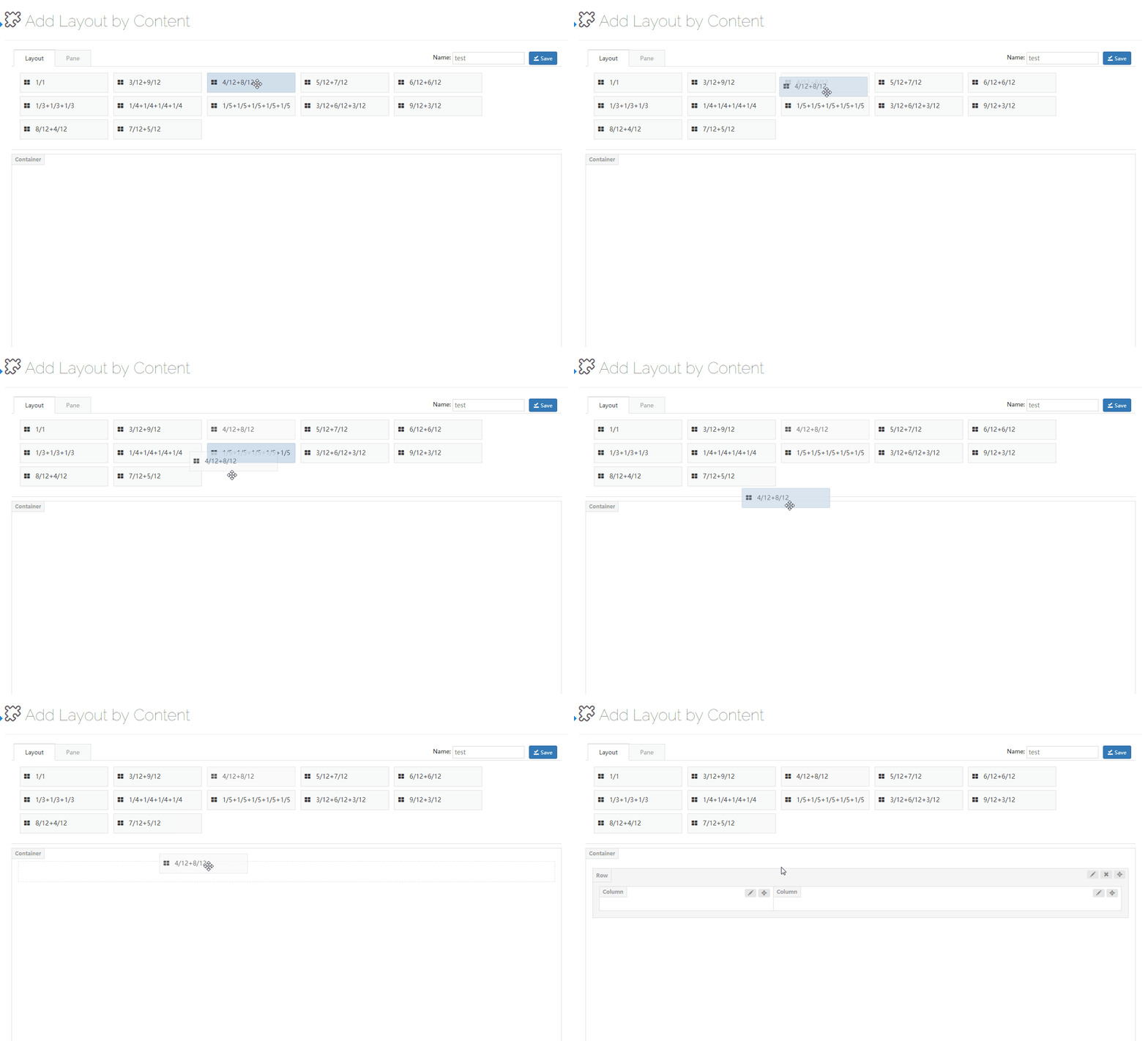
Pane
A pane is a container that allows you to add modules to the page. You can drag it into a column.
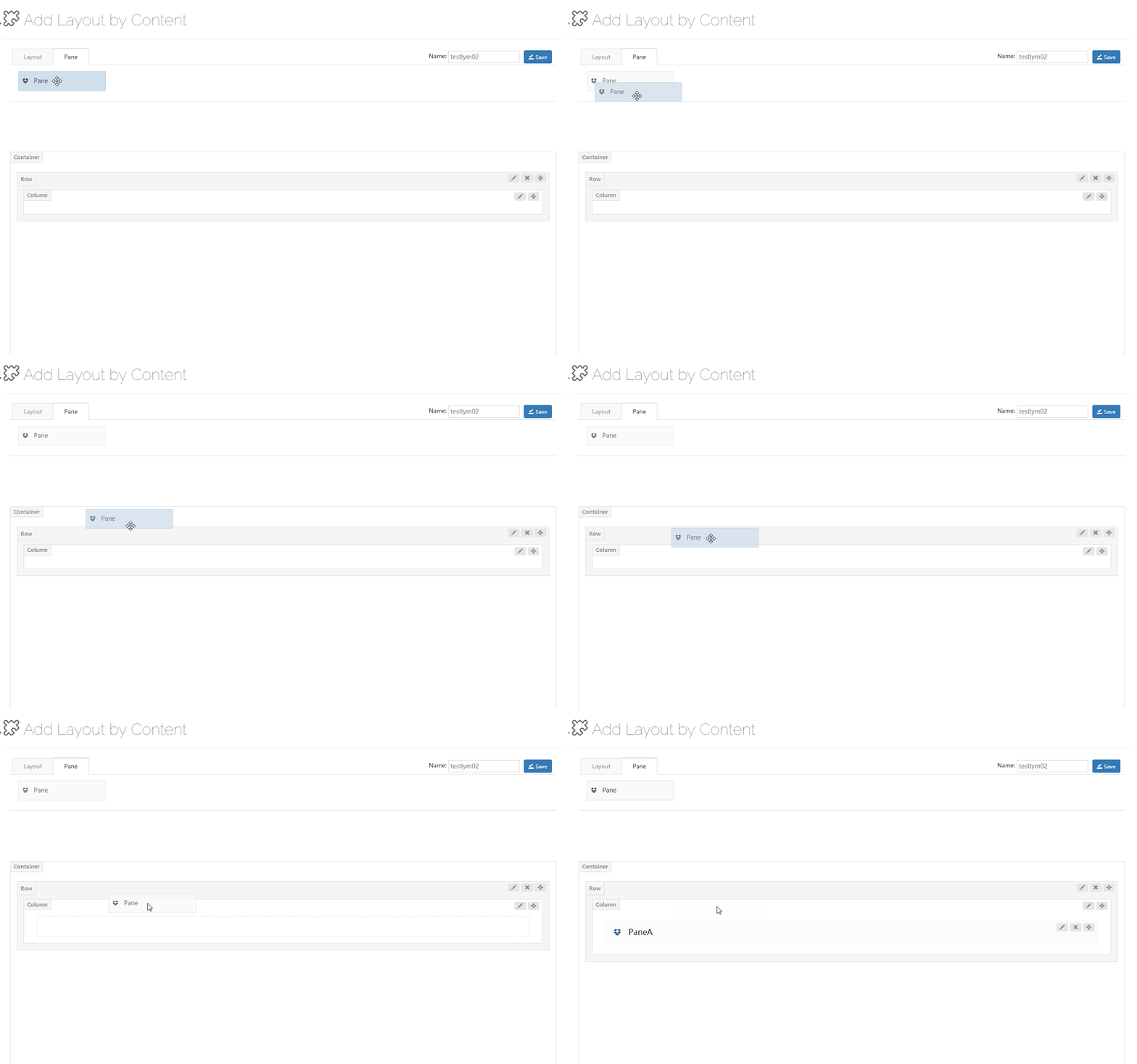
Pane Settings
- Pane Name — Set the pane name
- Background Settings — Set the background image and background color of the pane
- Custom CSS — Add theme preset CSS to the pane
Row Settings
Click the edit button on the right side of a row to enter the row settings interface.
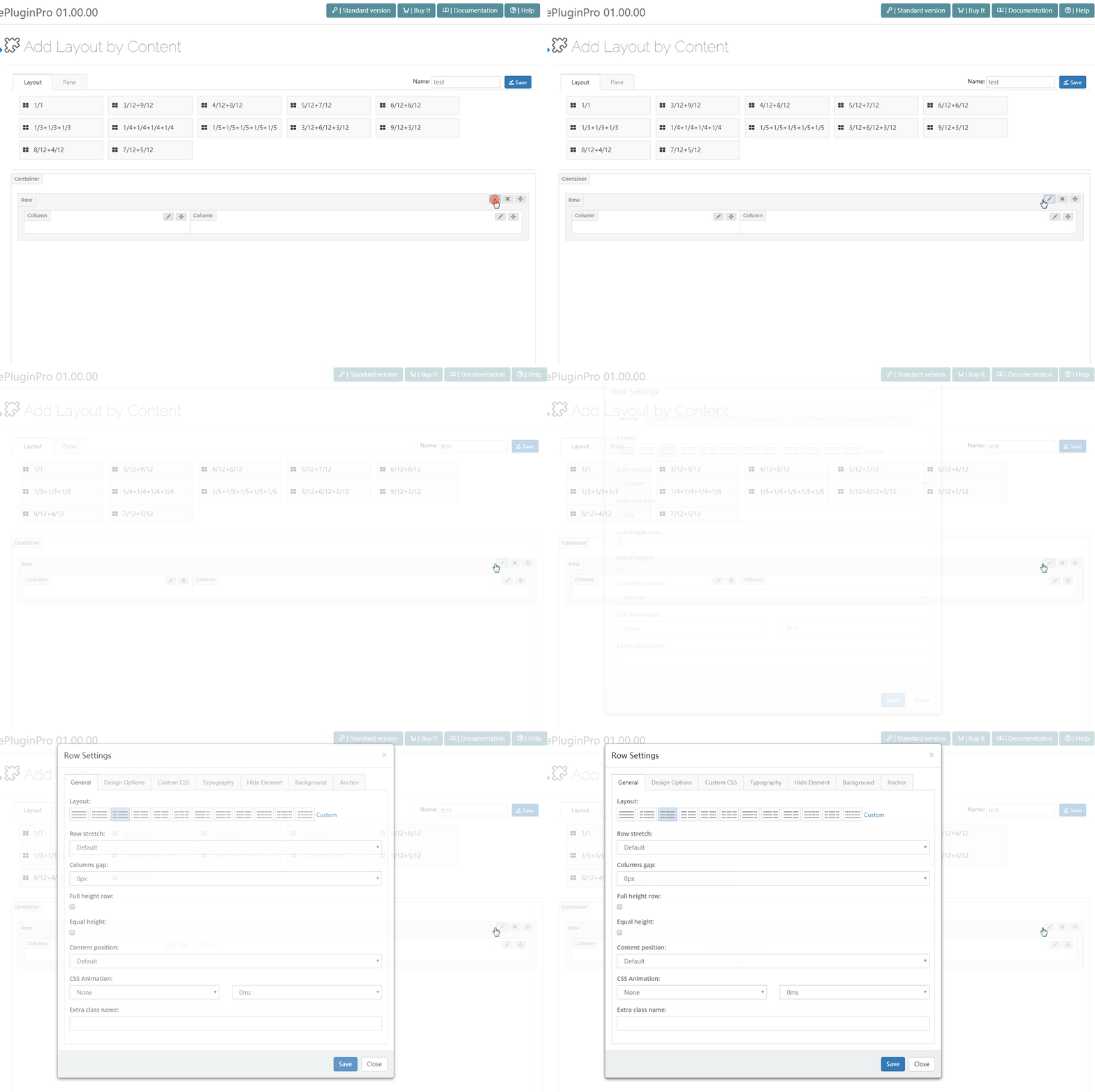
General
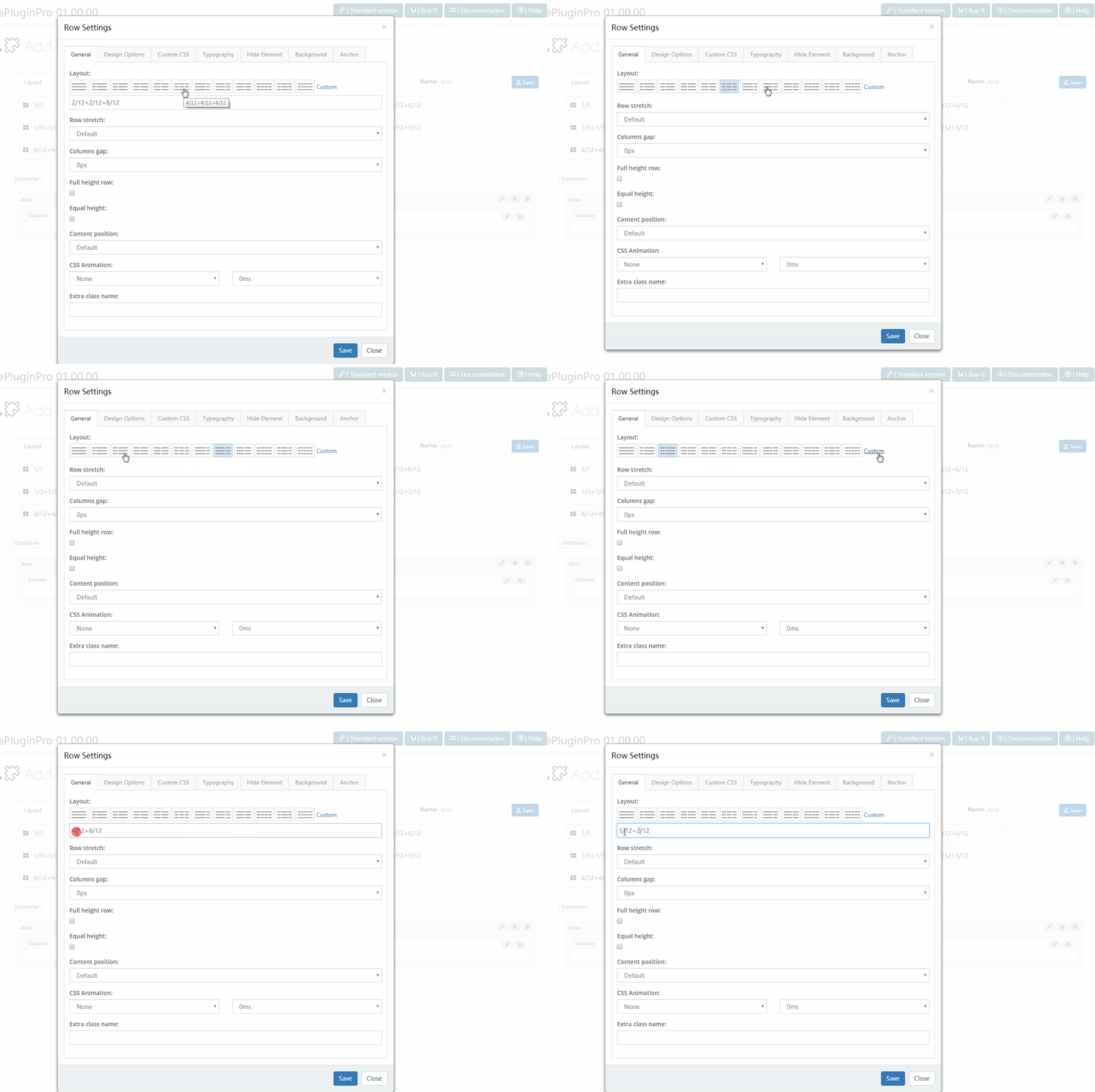
- Layout — Click the corresponding icon to quickly set the column layout, or customize the layout. In custom layout, you can enter values such as 1/12 to 12/12, 1/5 to 5/5, etc.
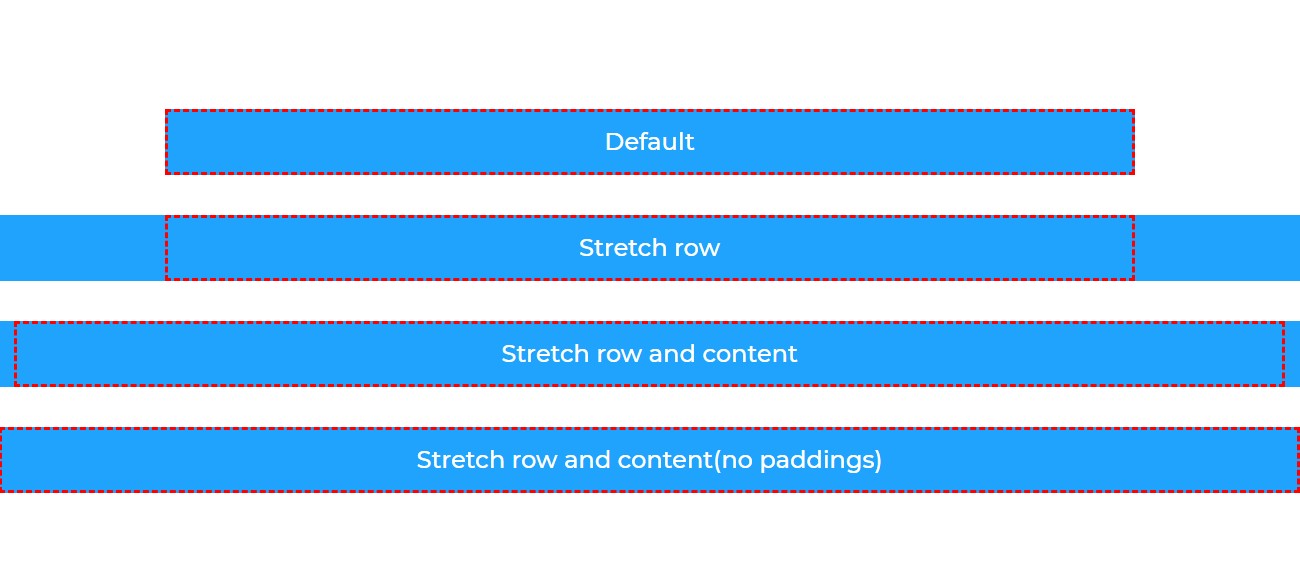
- Row Stretch — Set the row style. There are 4 options:
- Default — The content width matches the theme width
- Stretch Row — The row is full width, and the content width matches the theme width
- Stretch Row and Content — Both the row and content are full width, with extra spacing on both sides of the content
- Stretch Row and Content (No Padding) — Both the row and content are full width, with no padding
- Full Height Row — Set the row height to the browser window height
- Equal Height — Set all columns in the row to the same height
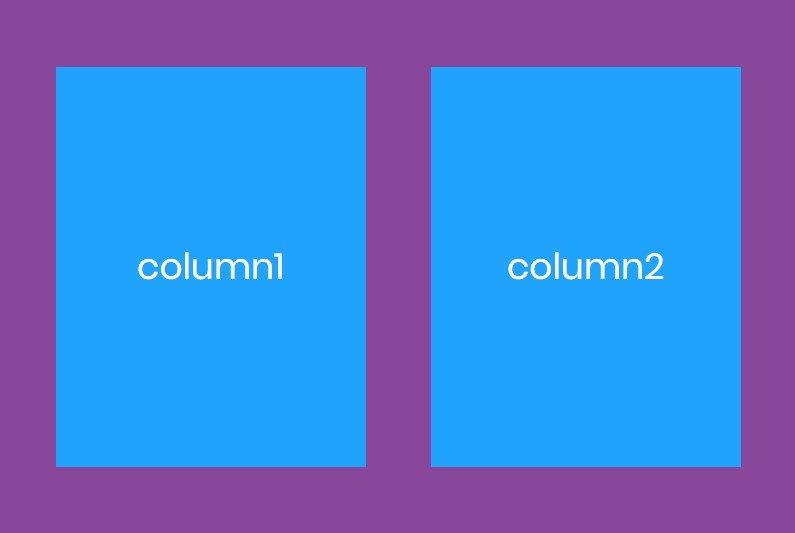
- Content Position — Vertically align columns using Flexbox alignment tools
- Content Alignment — Horizontally align columns using Flexbox alignment tools
- CSS Animation — Add entrance animation to the element, you can select the animation style and duration
- Extra Class — Add extra CSS class names to the row
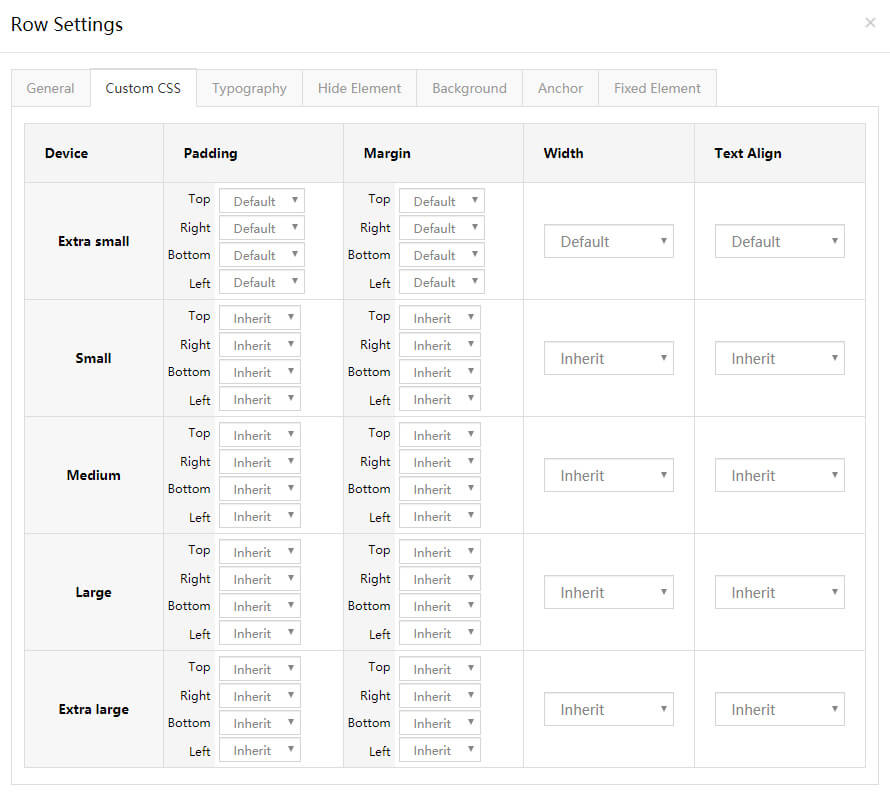
Custom CSS
Add theme preset CSS to the row.
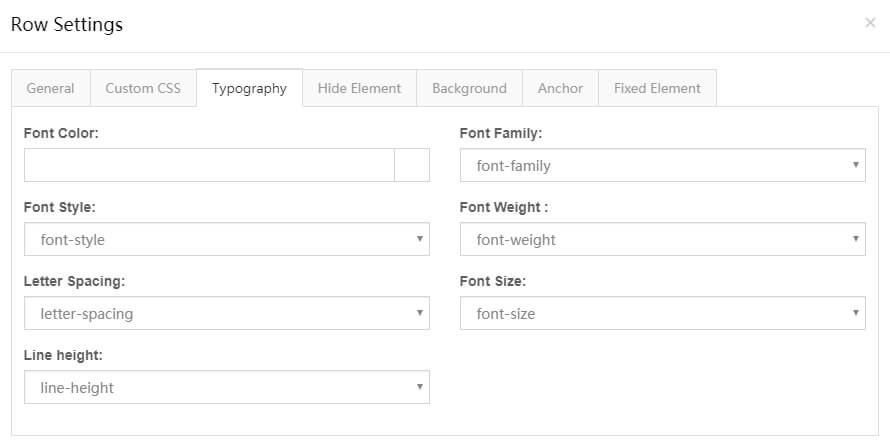
Typography
Set the text style of the row, such as text size, color, font, etc.
Hide Element
You can set the row to be hidden at specific resolutions.
Background
- Background Style — Set the background style:
1. Solid Color — Set the background to a solid color.
2. Gradient — Set the background to a gradient color.
- Gradient Type — Set the gradient direction
- Gradient Start Color — Set the gradient start color
- Gradient End Color — Set the gradient end color
3. Image — Set the background to an image.
4. Parallax — Set a parallax background image.
- Parallax Style — Choose between two options: fixed position and scroll parallax
- Parallax Factor — When scroll parallax is selected, you can set the displacement range of the background image, and you can also set it individually for different resolutions
5. YouTube Video — You can use a YouTube video as the background.
- YouTube ID — Enter the video ID. When watching a video on YouTube.com, the part after
v=in the URL is the video ID - Placeholder Image — Set the video cover image
- Loop — Set whether to loop playback
- Mute — Set whether to mute
- Start Time (seconds) — Set the video start time
- End Time (seconds) — Set the video end time
- Play Only When Visible — Set to play only when scrolled to the video area
- Show Color Overlay — Add an overlay to the background, set the color and opacity
- Enable Skew Background — Set whether to skew the background, you can set the skew angle
Anchor
- Anchor Title — Title text
Fixed Element
Add extra fixed elements to the row, optionally with a rotation animation.
Column Settings
Click the edit button on the right side of a column to enter the column settings interface.
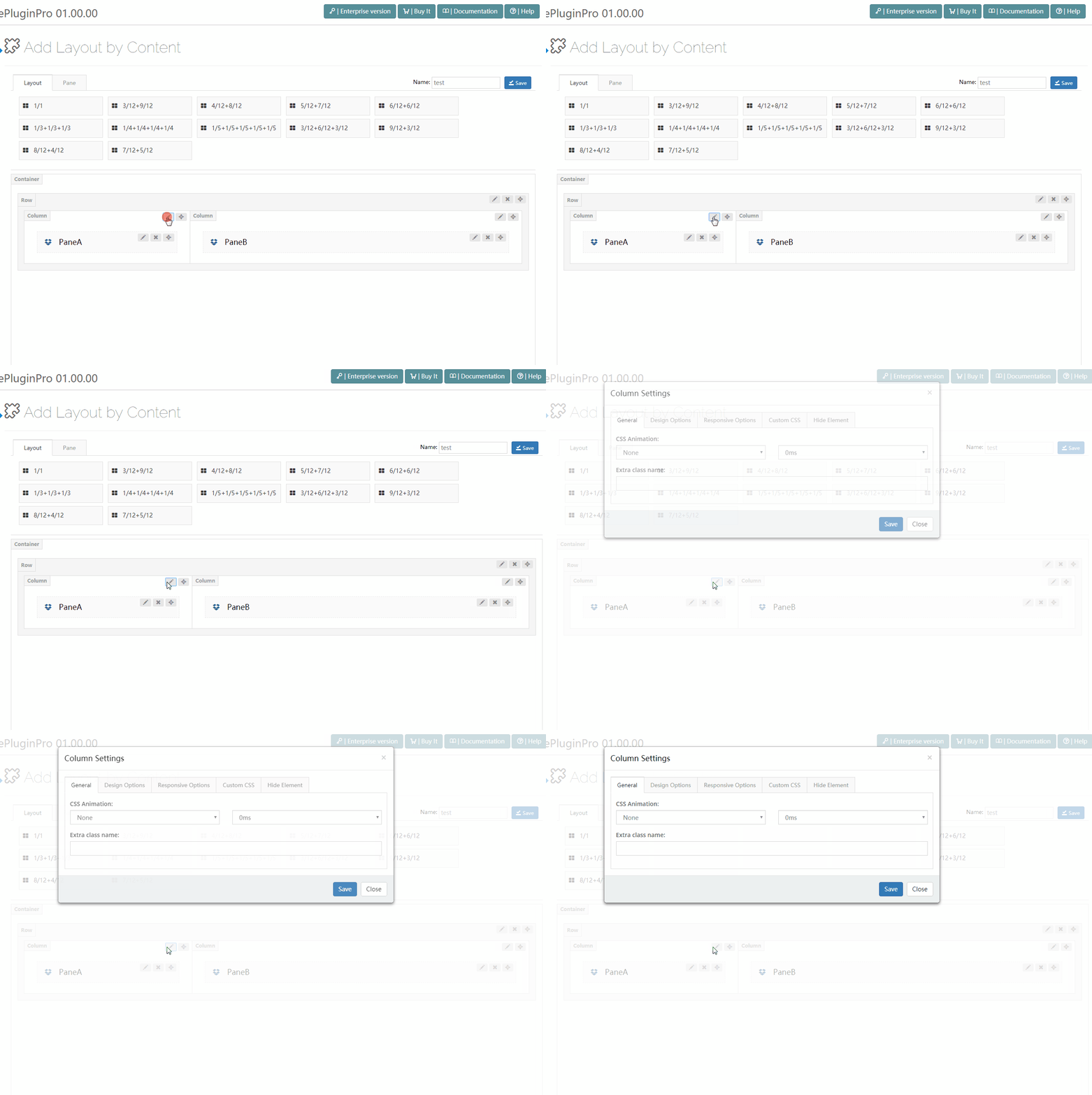
General
- CSS Animation — Add entrance animation to the element, you can select the animation style and duration
- Content Position — Vertically align the column using Flexbox alignment tools
- Extra Class — Add extra CSS class names to the column
Background Settings
Set the background image and background color of the column.
Responsive Options
You can set column properties for different resolutions.
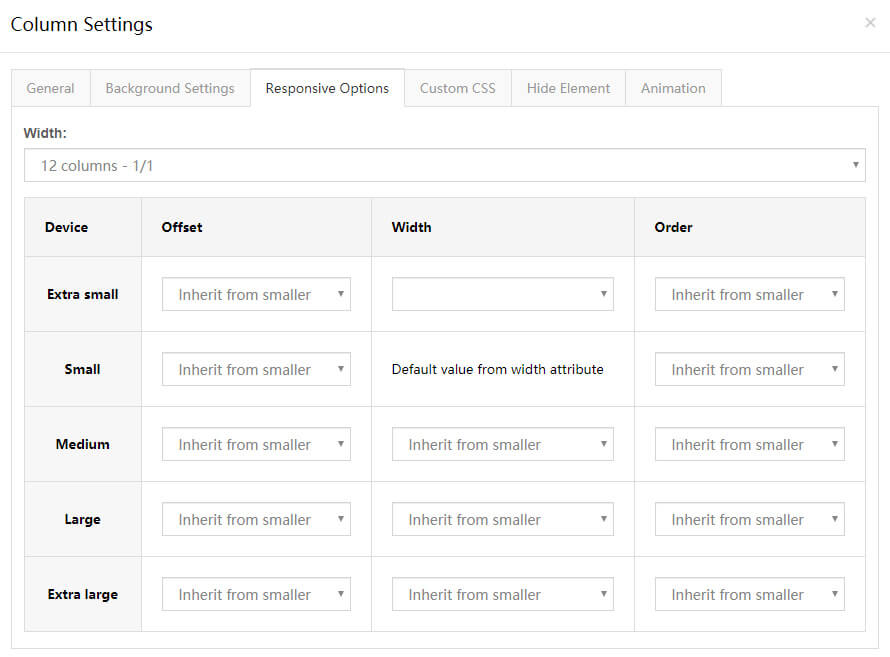
- Default Width — Set the column width
- Devices — Extra small < 576px, Small ≥ 576px, Medium ≥ 768px, Large ≥ 992px, Extra large ≥ 1200px
- Offset — Set the column offset
- Device Width — Set the column width for different resolutions, mobile defaults to full width
- Order — Set the display order
Custom CSS
Add theme preset CSS to the column.
Hide Element
You can set the column to be hidden at specific resolutions.