Appearance
Setting Up OnePage Navigation
OnePage navigation divides the page into multiple anchor sections. When a user clicks a menu item, the page smoothly scrolls to the corresponding section. This is ideal for single-page websites or long page layouts.
Configuration Steps
Part 1: Define Page Sections
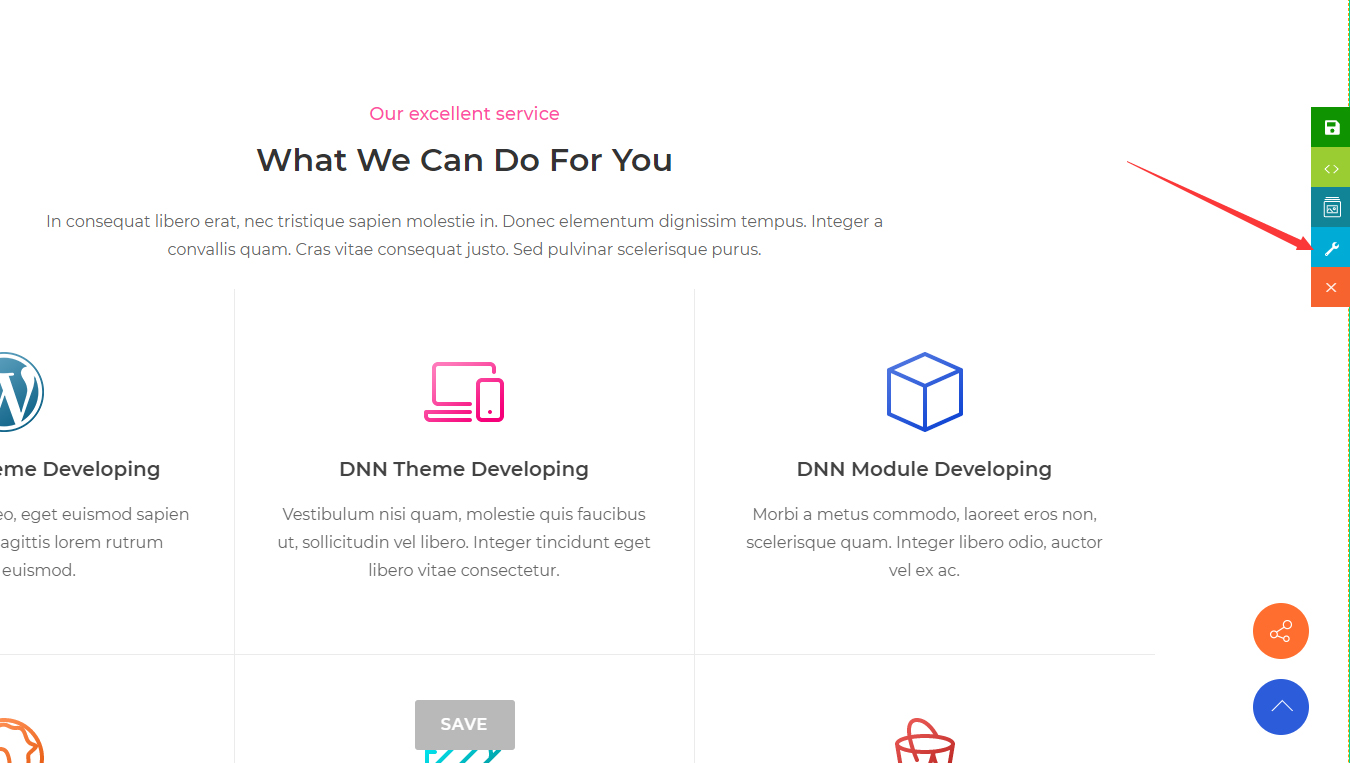
- In the ContentBuilder editor, click the Section Settings button on the target content area.
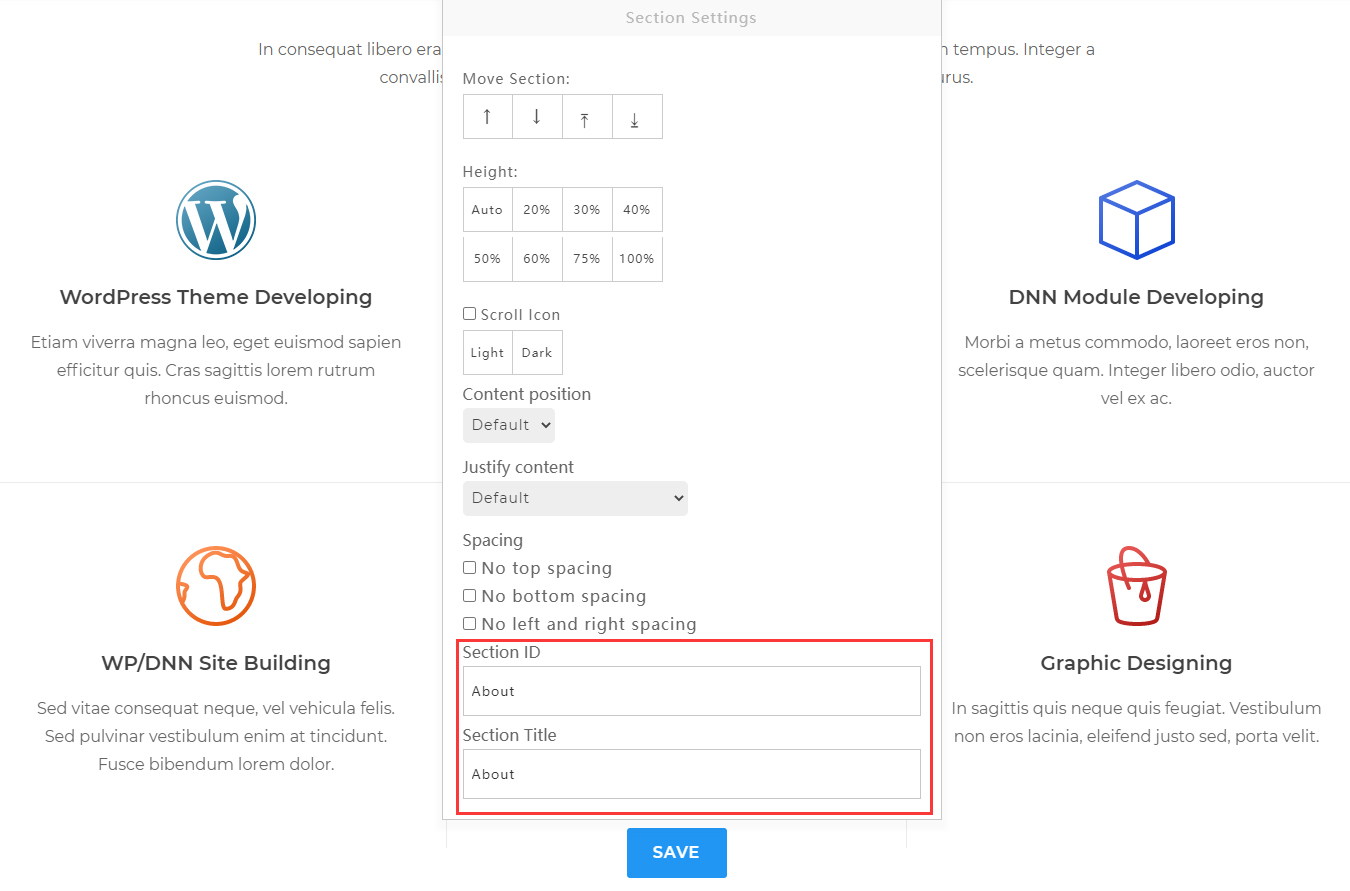
- Enter a section identifier in the Section ID field (must not contain spaces), for example:
About. - Enter a section title in the Section Title field. This text will be used as the display name in the navigation menu.
Part 2: Create Menu Items
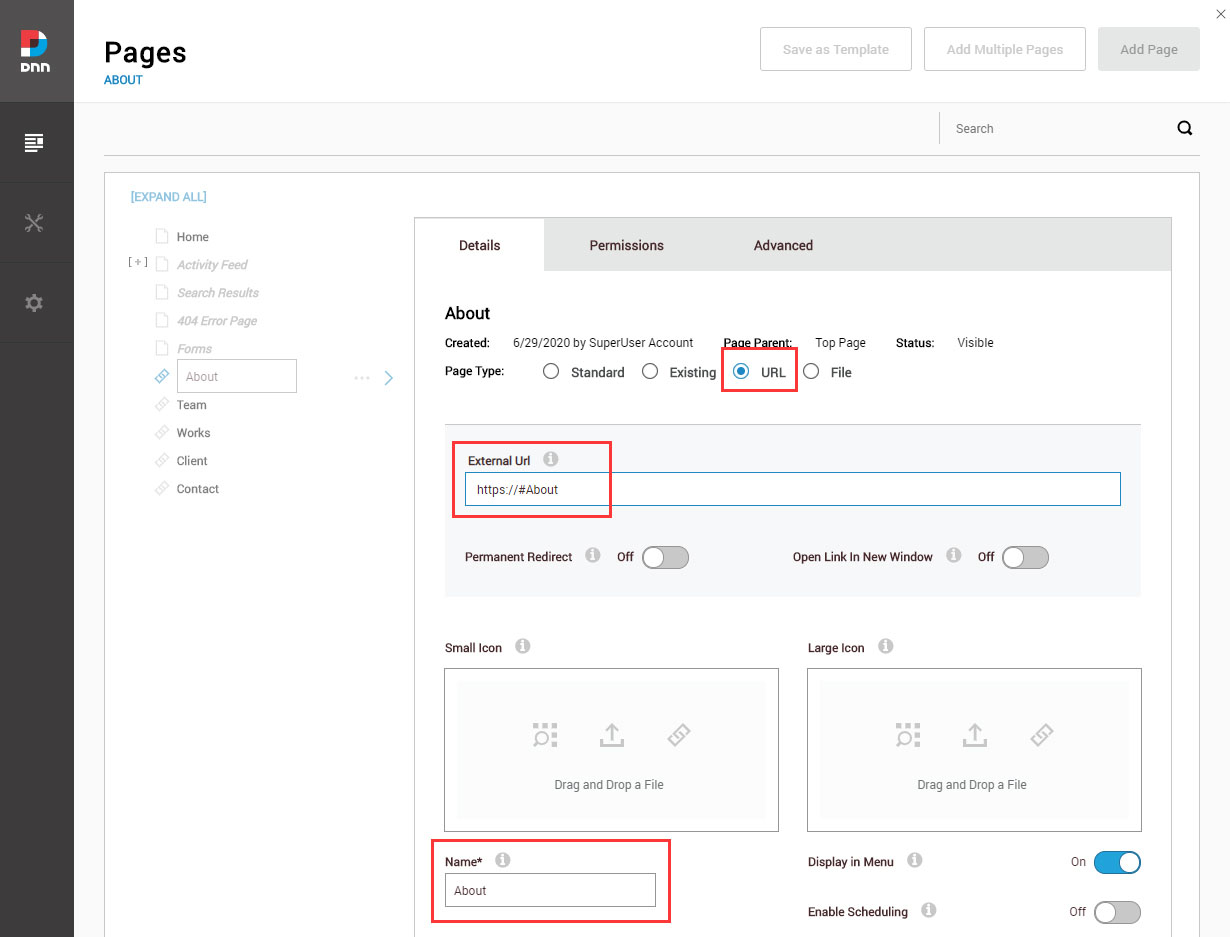
- Go to the DNN backend and navigate to Admin > Pages.
- Click to add a new page and configure the following parameters:
| Field | Value |
|---|---|
| Page Type | Select URL |
| External URL | Enter the anchor address in the format https://#About (About corresponds to the Section ID set in step 2) |
| Name | Enter the menu display name, for example About Us |
- Repeat the above steps for other sections to create the corresponding menu items one by one.
Notes
- Each Section ID must be unique within the page and must not contain spaces or special characters.
- The anchor identifier in the URL (the part after
#) must exactly match the Section ID, including case sensitivity. - It is recommended to keep the menu display names consistent with the corresponding Section Titles so users can accurately identify the navigation targets.