Appearance
Setting Up the Blog Page
The Fiwetis theme uses the xBlog module for blog functionality. xBlog is a feature-rich DNN blog module that supports article lists, categories, tags, search, and more.
View the blog page demo: https://fiwetis.dnngo.net/Pages/Blog
Steps
1. Create a Blog Page
- Log in to the DNN backend as a superuser.
- Go to Admin > Pages and click to add a new page.
- Set the page name (for example:
Blog) and configure page access permissions. - Set the page Theme to Fiwetis, Layout to index, and Container to No Title.
2. Add the xBlog Module
- Navigate to the newly created Blog page.
- Click Add Module, select the DNNGo_xBlog module, and add it to the RowSixGrid8Pane of the page.
3. Import Blog Posts (Optional)
The theme provides preset blog post data that you can import to quickly populate the blog page content.
- Click the Manager link in the xBlog module to access the module backend.
- Click the Export & Import menu on the left side of the page.
- Upload the file
xBlog_Articles_Import.xmlin the Import section.
4. Write Blog Posts
- Click the Add New Post button in the xBlog module.
- Fill in the article title and body content.
- Set the article category, tags, and cover image.
- Click Save to publish the article.
5. Configure xBlog
Click the Manager link in the xBlog module to access the module backend. The backend provides the following function menus:
Posts
| Menu | Description |
|---|---|
| All Posts | View and manage all posts |
| Add New | Add a new post |
| Categories | Manage post categories |
| Tags | Manage post tags |
| Import Export | Import and export post data |
| RssFeed Source | Configure RSS feed sources |
Library — Manage images and media resources used in posts.
Comments — Manage post comments.
Subscriber
| Menu | Description |
|---|---|
| All Subscribers | View all subscribers |
| Add Role | Add subscribers by role |
| Add Email | Add a single email subscriber |
| Batch Add Email | Batch add email subscribers |
Skins
| Menu | Description |
|---|---|
| Options | General skin options |
| Skin List | Select the blog list layout style |
| Style | Customize skin styles |
Effects
| Menu | Description |
|---|---|
| Options | General effect options |
| Effect List | Select the list loading animation effect |
| Style | Customize effect styles |
Settings
| Menu | Description |
|---|---|
| General Settings | General settings (posts per page, thumbnail size, etc.) |
| Social Settings | Social sharing settings |
| Comment Settings | Comment feature settings |
| Captcha Settings | Captcha settings |
| Email Settings | Email notification settings |
| SEO Settings | SEO optimization settings |
| Rating Settings | Post rating settings |
| Share Settings | Share button settings |
License — Manage the module license.
Setting Up the Search Module
- Click Add Module, select the DNNGo xBlog Search module, and add it to the RowSixGrid4Pane of the page.
- Click the module's Settings, and on the General Settings page, select the xBlog module as the data source.
Setting Up the Category Module
- Click Add Module, select the DNNGo xBlog DashBoard module, and add it to the RowSixGrid4Pane of the page.
- Click the module's Settings, and on the General Settings page, select the xBlog module as the data source.
- Click the Effect List menu on the left side of the page and select DashBoard_Category-Fiwetis.

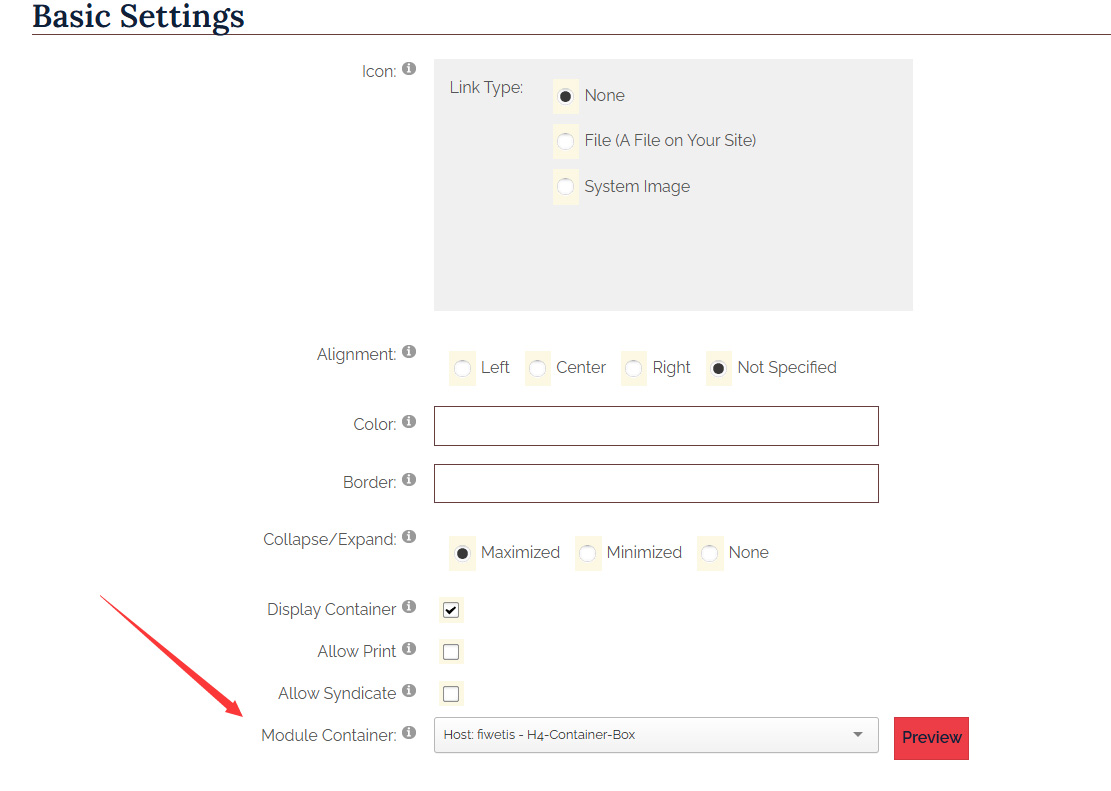
- In the module settings, set Module Container to Host: fiwetis - H4-Container-Box.
Setting Up the Latest Posts Module
- Click Add Module, select the DNNGo xBlog DashBoard module, and add it to the RowSixGrid4Pane of the page.
- Click the module's Settings, and on the General Settings page, select the xBlog module as the data source.
- Click the Effect List menu on the left side of the page and select DashBoard_LatestPost-Fiwetis.

- In the module settings, set Module Container to Host: fiwetis - H4-Container-Box.
Setting Up the Tags Module
- Click Add Module, select the DNNGo xBlog DashBoard module, and add it to the RowSixGrid4Pane of the page.
- Click the module's Settings, and on the General Settings page, select the xBlog module as the data source.
- Click the Effect List menu on the left side of the page and select DashBoard_Tag-Fiwetis.

- In the module settings, set Module Container to Host: fiwetis - H4-Container-Box.
Notes
- Make sure the xBlog module is properly installed (installation package:
DNNGo_xBlog_10.05.00_Release_Install.zip). - The xBlog module styles automatically adapt to the Fiwetis theme — no additional CSS configuration is needed.
- It is recommended to set a cover image for each post to ensure visual consistency in the blog list.